Audiences

Create audiences by defining rules (e.g. signed-in users, membership tier, language, country, platform). Use them to control who sees content or receives messages.

Where to find it

In the left navigation, open Engagement, then the Audiences tab. You’ll see your list of audiences, Search audiences, Filters, and a List / Cards view toggle. Use Create Audience to add a new audience.

Creating an audience

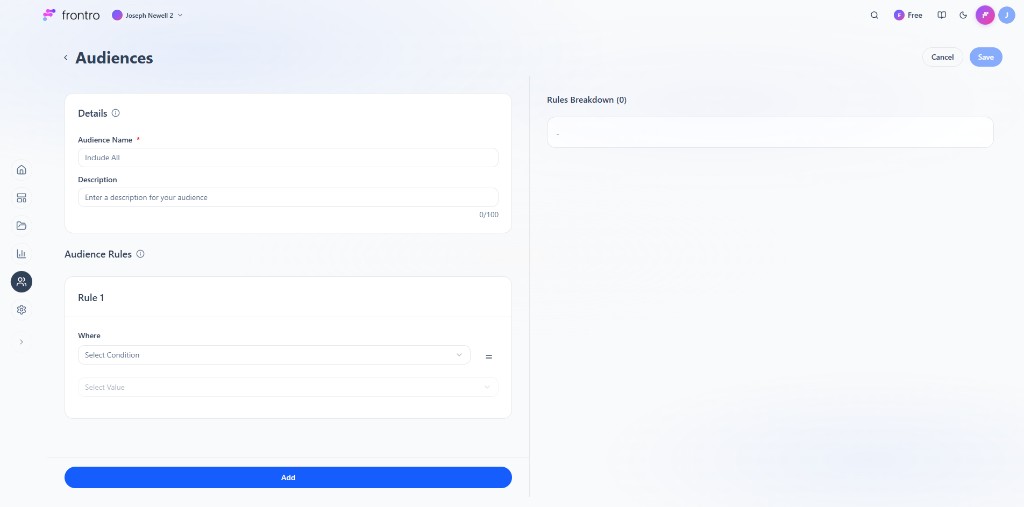
The Create Audience page has a Details section (name and description) on the left, Audience Rules where you add conditions, and a Rules Breakdown panel on the right that summarizes the rules you’ve added.

Create Audience page with Details, Audience Rules (Select Condition, Select Value), and Rules Breakdown (0)

  1. Click Create Audience.
  2. In Details, give the audience a name (required, e.g. “Include All”). You can add a description.
  3. Under Select Condition, choose the type of rule:
    • Anonymous users – Anyone who is not signed in. Let anyone who is not signed in view this content.
    • Registered users – Only viewers who are signed in. Limit access to viewers who are signed in.
    • Membership tiers – Choose which membership tiers satisfy the rule.
    • Languages – Select which languages this rule applies to.
    • Countries – Select which countries this rule applies to.
    • Platforms – Select which platforms (e.g. web, mobile) this rule applies to.
  4. For conditions that need a value (e.g. membership tier, languages, countries, platforms), use Select Value and add the rule.
  5. Click Add to add the rule. The Rules Breakdown panel on the right shows the rules you’ve added (you need at least one rule).
  6. Click Save to create the audience, or Cancel to discard.

You can add multiple rules; the audience targets users who match the combination of rules you define.

Example: Anonymous users audience

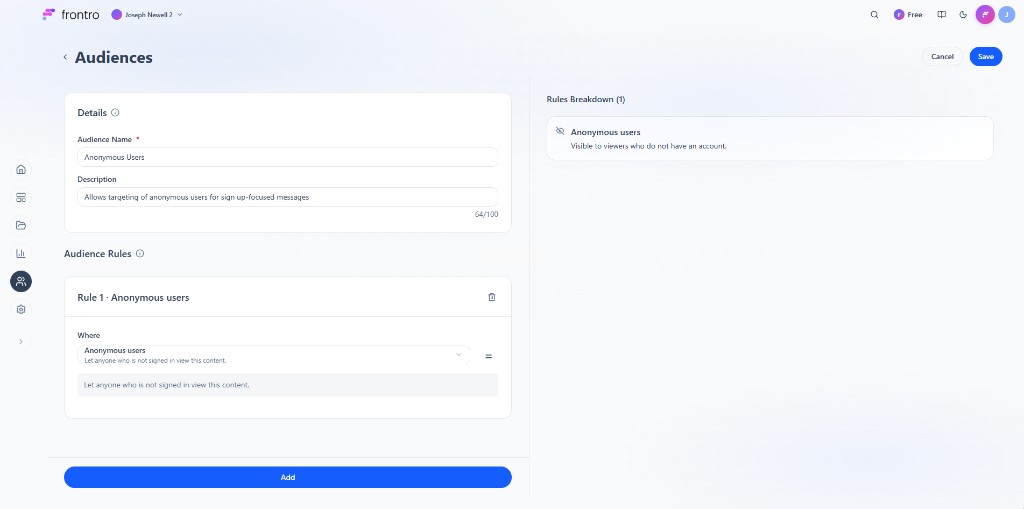
Below is an example with one rule. The audience is named “Anonymous Users”, the description explains it’s for sign-up–focused messages, and Rule 1 uses the Anonymous users condition. The Rules Breakdown panel shows the rule summary: Visible to viewers who do not have an account.

Create Audience example: Anonymous Users with one rule and Rules Breakdown (1)

Managing audiences

  • List view – Table of your audiences (name, description, created date, and other details you’ve set).
  • Cards view – Same audiences in a card layout.
  • Use Search audiences and Filters to find specific audiences. Edit or delete audiences from the list or card actions as available in the app.

Using audiences

Audiences you create can be used elsewhere in the dashboard where targeting is supported, for example:

  • Content and builder – Assign an audience to control who can see a page, block, or piece of content.
  • In-App Messaging and Push Notifications – Choose an audience when creating a message so it is sent only to users who match that audience.

There are no predefined audience segments (e.g. “Premium Members” or “Standard Members”)—you define every audience yourself with the rules above.

Best practices

  1. Name clearly – Use names that describe who the audience is (e.g. “Logged-in EU viewers”, “Tier 2 members”).
  2. Start with one rule – Create simple audiences first, then add more rules if needed.
  3. Reuse where it helps – Use the same audience across content and messaging when you want the same targeting.

Was this page helpful?