One-Time Purchases

Allow your viewers to purchase individual pieces of content without needing a subscription. Perfect for premium videos, exclusive content, and special episodes that deserve their own pricing.

What are One-Time Purchases?

One-Time Purchases let you sell access to specific content for a single payment. Unlike subscriptions, viewers pay once and get permanent access to that content across all their devices.

Perfect for:

  • Premium episodes or special content
  • Exclusive behind-the-scenes videos
  • Masterclass-style educational content
  • Live event recordings or special broadcasts
  • Bonus content that goes beyond your regular offerings

Benefits for You:

  • Extra revenue from premium content
  • Flexible pricing - set your own prices
  • Keep existing subscribers happy while attracting new viewers
  • Simple setup - create purchases in minutes

Benefits for Your Viewers:

  • No subscription required - pay only for what they want
  • Permanent access - they own the content forever
  • Works everywhere - watch on any device
  • Multiple payment options - credit card, Apple Pay, Google Pay

How to Create a One-Time Purchase

Step 1: Access One-Time Purchases

  1. In your creator dashboard, look for "MONETIZATION" in the left sidebar
  2. Click on "One-Time Purchases"
  3. Click the blue "Add New" button to create your first purchase

[Screenshot: OTP main page with "Add New" button]

Step 2: Set Up Your Purchase Details

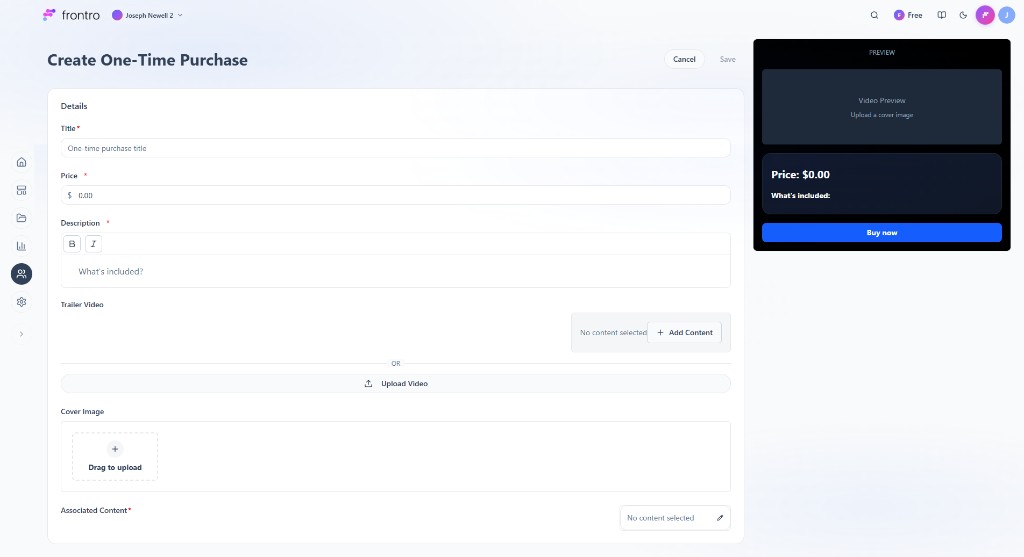
When you click "Add New", you'll see a form with several fields:

Basic Information

  • Title: Give your purchase a clear, compelling name

    • Example: "Advanced Photography Masterclass"
    • Example: "Behind the Scenes: Season Finale"
  • Price: Set your price in dollars

    • Start with what feels right for your content's value
    • You can always adjust prices later
  • Description: Explain what viewers get when they purchase

    • Be specific about what's included
    • Mention any bonus materials or special features

Platform Setup (Optional)

  • Android Product ID: Only needed if you want Android app purchases
  • Apple Product ID: Only needed if you want iOS app purchases
  • Most creators can leave these blank and use web-only purchases

[Screenshot: Create OTP form with fields filled out]

Step 3: Add Your Content

This is the most important part - selecting what content viewers get when they purchase:

Select Content to Include

  1. Scroll down to "One Time Purchase Content"
  2. Click "Add Content" to choose what's included
  3. Select videos, courses, or other content from your library
  4. You can include multiple pieces of content in one purchase

Upload Marketing Materials

  • Cover Image: Upload an eye-catching image that represents your content
  • Trailer Video: Add a preview video to show potential buyers what they're getting

[Screenshot: Content selection interface and upload areas]

Step 4: Preview and Publish

Before publishing, use the Preview panel on the right to see exactly how your purchase will look to viewers:

  • Check that the price displays correctly
  • Review the "What's included" section
  • Make sure your cover image looks good
  • Test the "Buy now" button appearance

When everything looks good, click "Submit" to publish your one-time purchase.

[Screenshot: Preview panel showing how purchase appears to viewers]

How Viewers See and Buy Your Content

Discovery

When viewers browse your content, they'll see premium content marked with special indicators:

  • Lock icon on premium content thumbnails
  • Price displayed clearly on the content
  • "Premium Content" labels where appropriate

[Screenshot: Mobile app showing premium content with lock icons]

Purchase Process

When a viewer wants to buy your content:

  1. They tap on the locked content they want to watch

  2. A purchase screen appears showing:

    • Content title and description
    • Price clearly displayed
    • What's included in the purchase
    • Preview of the content
  3. Multiple purchase options may be available:

    • One-time purchase for this specific content
    • Subscription upgrade for access to everything
    • Other purchase bundles you've created
  4. Simple checkout process:

    • Choose payment method (credit card, Apple Pay, etc.)
    • Complete purchase in just a few taps
    • Instant access to content

[Screenshot: Purchase screen showing options and pricing]

After Purchase

Once someone buys your content:

  • Immediate access - they can watch right away
  • Permanent ownership - content stays in their library forever
  • Works on all devices - phone, tablet, TV, computer
  • Email confirmation - they get a receipt for their purchase

[Screenshot: Success screen and content now unlocked]

Pricing Your Content

Setting the Right Price

Start with value: What would you pay for this content?

  • Consider the length and quality of your content
  • Think about what similar creators charge
  • Factor in any exclusive or special elements

Common Price Ranges:

  • Short premium videos (10-30 min): $2.99 - $9.99
  • Full episodes or masterclasses (30+ min): $9.99 - $24.99
  • Comprehensive courses or series: $19.99 - $49.99
  • Exclusive live event recordings: $14.99 - $39.99

You can always adjust: Start with a price that feels right, then adjust based on how well it sells.

Testing Different Prices

Try different price points to see what works:

  • Start higher and lower the price if needed
  • Consider limited-time introductory pricing
  • Watch your sales data to find the sweet spot

Managing Your One-Time Purchases

Viewing Your Sales

Back in the One-Time Purchases section, you can:

  • See all your created purchases
  • Check how many people have bought each one
  • View your total revenue
  • Edit or update existing purchases

Making Changes

You can update your one-time purchases anytime:

  • Change the description or title
  • Adjust the price
  • Add or remove content
  • Update cover images or trailers

Note: People who already purchased will keep access to everything, even if you make changes.

Best Practices

Creating Compelling Purchases

  1. Clear value proposition: Make it obvious what viewers get
  2. Quality preview content: Show a trailer or sample
  3. Attractive cover image: First impressions matter
  4. Detailed description: Explain exactly what's included
  5. Fair pricing: Price appropriately for your audience

Content Strategy

What works well for one-time purchases:

  • Special episodes that go deeper than usual
  • Behind-the-scenes or bonus content
  • Educational masterclasses or tutorials
  • Exclusive interviews or collaborations
  • Live event recordings or special broadcasts

What to avoid:

  • Regular weekly content (better for subscriptions)
  • Very short clips (may not feel worth purchasing)
  • Content that requires frequent updates

Growing Your Sales

  1. Promote on social media: Share previews and teasers
  2. Email your subscribers: Let them know about new premium content
  3. Create urgency: Limited-time introductory pricing
  4. Bundle related content: Offer multiple videos together
  5. Deliver exceptional value: Happy buyers become repeat customers

Troubleshooting

Common Questions

Q: Can I change the price after publishing? A: Yes, you can update prices anytime. People who already bought keep their access.

Q: What if someone wants a refund? A: Contact support for refund requests. Most platforms have standard refund policies.

Q: Do I need the Android/Apple Product IDs? A: Only if you want in-app purchases on mobile. Most creators start with web-only purchases.

Q: Can I include the same content in multiple purchases? A: Yes, you can include content in different bundles or packages.

Q: How do viewers access content after purchasing? A: Content automatically appears in their library and works on all their devices.

Getting Help

If you need assistance:

  • Check the preview panel to see how your purchase looks
  • Start with simple purchases and add complexity later
  • Contact support if you have technical issues
  • Join creator communities to share tips and strategies

Next Steps

Ready to create your first one-time purchase?

  1. Identify your best premium content - what would people pay extra for?
  2. Set up your first purchase following the steps above
  3. Start with one simple purchase to test the process
  4. Promote it to your audience and see how it performs
  5. Create more purchases based on what works

Remember: One-time purchases are a great way to monetize special content while keeping your regular content accessible. Start simple, learn what works, and grow from there!


Need help getting started? Contact our creator support team for personalized assistance with setting up your one-time purchases.

Was this page helpful?