
Community Chat
Community Chat lets creators run topic-based conversations with their viewers. You create topics (and group them with categories), set who can access each topic by subscription or one-time purchase, and moderate via flagged messages and reports. Viewers can post messages and replies, react with emojis, mention others with @, attach images and videos, and use 1‑on‑1 direct messages (DMs).
Feature overview and benefits
- Topics & categories — Create chat topics and group them into categories so viewers can find relevant conversations.
- Access by tier — Restrict topics by subscription tier, one-time purchase(s), or audience.
- Rich messages — Text, replies (including replies to replies), emoji reactions, image and video attachments, and @mentions.
- Moderation — Delete any message (admins), delete your own messages, flag messages, and handle reports in one place.
- Read-only & attachment-only — Optional read-only topics (only admins post) or attachment-only (no text, only images and reactions).
- Unread & mentions — Unread state for threads and topics; viewers get notified when @mentioned.
- 1‑on‑1 DMs — Direct (and optionally group) conversations.
- Mobile — Chat works in the mobile app.
How it works
- Topics — Each topic is one thread. You give it a name, description, image, and category. You can make it read-only (only admins post) or attachment-only (no text, only images and reactions).
- Categories — Groups of topics. Assign a category name when creating or editing a topic; use a new name to create a category. Edit by changing the category on topics; remove by moving or deleting all topics in that category.
- Message Center — In the creator dashboard, browse live chat by topic, review Flagged messages, and process Reports (ignore or delete).
For creators
Where to find it
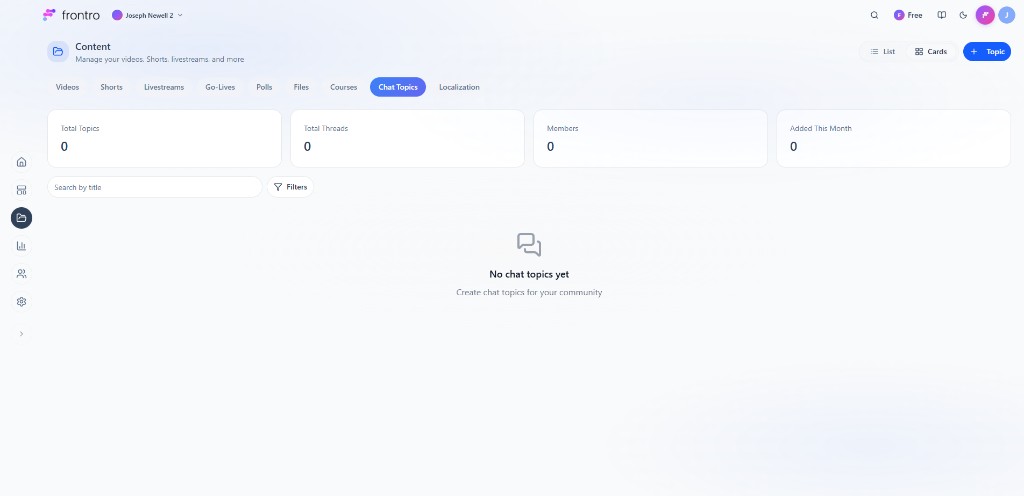
In the left navigation, open Content, then the Chat Topics tab. Stats: Total Topics, Total Threads, Members, Added This Month. Use Search by title, Filters, List / Cards view, and + Topic to create. The empty state says: “No chat topics yet. Create chat topics for your community.”
Getting started
- Enable Community Chat — Complete the setup flow if your dashboard shows it (extension + chat page).
- In Content → Chat Topics, click + Topic to add your first topic.
- Use Message Center to view live chat by topic, Flagged messages, and Reports.
Creating topics
In Create Topic, under Details set Topic image (drag to upload), Display name (required), Description (250 characters max), and Topic category (required; add a new category with the + button). Use Make this topic Read-Only (only admins send messages; viewers can add reactions) and Make this topic Attachment-Only (viewers can only upload images and add reactions, no text). Add Tags and expand Settings for publish/access. Save when done.
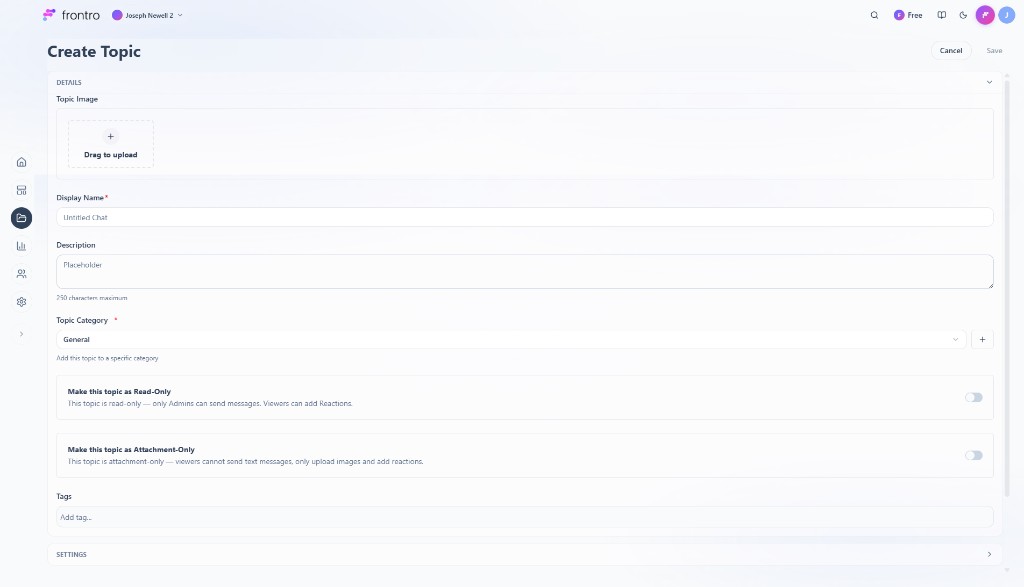
When creating or editing a topic you can set:
- Topic image — Optional icon or thumbnail.
- Display name — Name of the topic (e.g. “General”, “Q&A”, “Announcements”). Required.
- Description — Short description of what the topic is for. Optional.
- Topic category — Pick an existing category or type a new name to create one. Required (often defaulted to e.g. “General”).
- Read-only — If enabled, only admins can send messages; viewers can read and add reactions.
- Attachment-only — If enabled, viewers cannot send text; they can only upload images and add reactions.
- Tags — Optional tags for organization.
- Publish / access — Who can access the topic (see below).
Managing categories
- Create a category — When creating or editing a topic, set Topic category to a new name (e.g. “Events”). That name becomes a category.
- Edit a category — Change the Topic category on each topic that should move or rename.
- Remove a category — Move all topics to a different category or delete the topics. A category with no topics no longer appears.
Permissions (Publish / Access)
In the topic’s Publish or Access settings:
- Audiences — Limit which audiences can access the topic (if your channel uses audiences).
- Subscription tier — Require a specific tier; only members with that tier can see and post.
- One-time purchases (OTP) — Require one or more OTPs. Create OTPs under Monetization → One-Time Purchases, then attach them to the topic.
Viewers who don’t meet the requirements won’t see the topic or will see an upgrade/purchase prompt.
Moderation tools
| Action | Where | What you can do |
|---|---|---|
| Delete message | Message Center (live chat view) or chat UI | Admins can delete any message; viewers can delete only their own. |
| Flagged | Message Center → Flagged | List of all flagged messages. For each: Ignore (remove flag, keep message) or Delete (remove message). |
| Reports | Message Center → Reports | Reported messages with reason and reporter. Ignore the report or Delete the message. |
| Block user | Message Center or user profile | If supported, block users from posting or sending DMs. |
Flag vs report: Flag = quick “mark for review” (no reason). Report = includes a reason and reporter so you can prioritize.
FAQ
- How do I create a new category? — When creating or editing a topic, set Topic category to a name that doesn’t exist yet.
- Can I reorder topics or categories? — Order depends on your app; check the Chat Topics list or builder for reorder options.
- Can viewers delete each other’s messages? — No. Only the message author can delete their own, and admins can delete any message.
- Read-only topic: who can post? — Only channel admins. Viewers can read and add reactions.
- Attachment-only topic: what can viewers send? — Only images (and possibly video). No text; reactions are still allowed.
Troubleshooting
- I don’t see Chat Topics in the menu. — Ensure Community Chat is enabled and complete the “Enable Community Chat” setup flow (extension + chat page).
- Flagged or Reports list is empty but I know something was flagged. — Refresh the Message Center or re-open the Flagged/Reports tab.
- Viewers say they can’t access a topic. — Check the topic’s access settings (subscription tier, OTPs, audiences). Confirm the viewer has the required subscription or completed purchase.
- I deleted a message but it still shows for some users. — Ask them to refresh the thread.
- How do I turn off chat for one topic? — Set the topic to draft or archived (if supported), or delete the topic (permanent).
Comments on content
Comments appear on videos, Shorts, livestreams, and course lessons. Enable or disable comments when creating or editing each piece of content. Moderate from the content’s Comments tab or Moderation → Comments: pin, hide, delete, or block users; handle flagged and reported comments in the queue.
@Mentions
Viewers can @mention others (e.g. @jane) in chat messages and in comments on content. The mentioned user receives a notification (in-app and optionally push). Manage mention notifications in notification preferences. For abuse, delete or hide the message or comment and block the user via Moderation.
Related documentation
- Community — Overview of community features
- In-App Messages — Push-style messages to viewers
- One-Time Purchases — OTPs you can attach to chat topics