
Shorts
Shorts are vertical, short-form videos optimized for mobile viewing and quick consumption. Manage them on the Shorts tab in Content.
Where to find it
In the left navigation, open Content, then the Shorts tab. Stats shown: Total Shorts, Total Views, Watch Time, Added This Month. Use Search by title, Filters, List / Cards view, and + Reel to add a short. The empty state prompts: “Upload your first short to get started.”
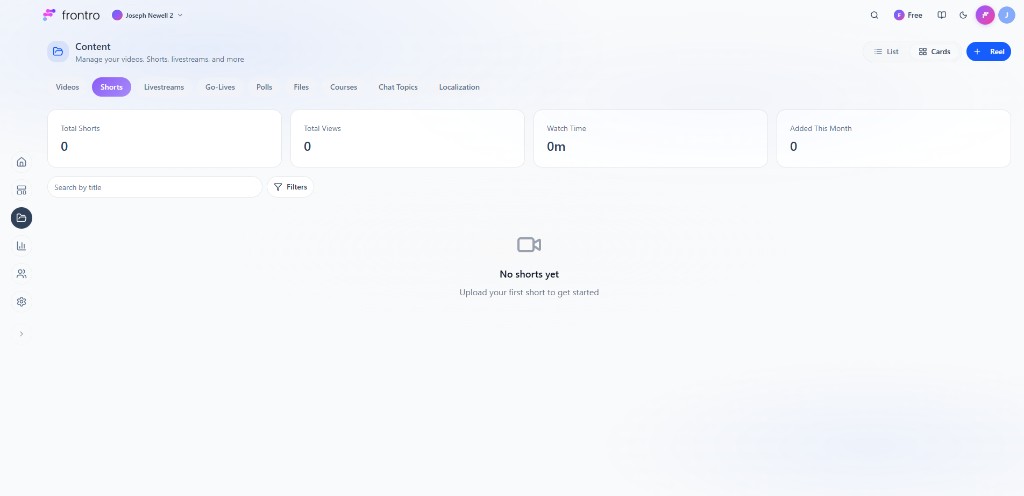
Shorts are identified by vertical layout (9:16). You add and manage them on the Shorts tab in Content (same upload flow as video from Videos or Create where applicable). To show a Shorts feed in your app, add a Shorts section in the Builder.
Feature overview and benefits
For creators
- Keep viewers engaged — Shorts appear in a dedicated Shorts feed so viewers can swipe through your content.
- Same tools as video — Use the same upload, editing, and metadata workflow as regular videos; vertical format is detected automatically.
- Analytics — See views, watch time, and engagement for your Shorts in Content → Shorts.
- Mobile upload — Record and upload Shorts directly from the Frontro mobile app.
For creators: getting started
Uploading Shorts
- In Content → Shorts, click + Reel (or use the Create menu and choose Short or Video).
- Upload a video file. If the video is vertical (height greater than width), it will be treated as a Short.
- Add title, description, and any other metadata.
- Publish. The Short will appear in your Shorts library and in the Shorts feed for your channel.
Shorts are managed on the Shorts tab in Content and use the same editing and metadata flow as regular videos; the only difference is the layout (vertical vs horizontal).
Video specifications
- Layout — Vertical (9:16) so it appears in the Shorts feed. There are no duration or file-size restrictions for Shorts on web or mobile.
- Format — Same as video (e.g. MP4, MOV, WebM, MKV) where supported.
- Resolution — 1080×1920 or similar vertical is recommended.
Editing and metadata
- Manage Shorts on the Shorts tab in Content: open a Short and use the same tabs (Details, Video Rolls, Additional Files) as for video.
- Title and description are shown in the Shorts player; keep titles short and descriptive.
- Thumbnail can be set like for regular video.
- Visibility (public, unlisted, private) and access (free vs gated) work the same as for video.
Shorts feed in your app
- Add a Shorts (or "Short-form") item to your app menu or layout in the Builder. When viewers open it, they will see the Shorts feed.
- The feed shows Shorts from your channel in a vertical, swipeable list.
Mobile upload from the app
- In the Frontro creator mobile app, you can record or pick a clip and upload it as a Short from Content → Shorts (or the Shorts area in the app). The same Shorts tab and management apply on web and mobile.
Shorts analytics
- In Content → Shorts, you'll see totals for Shorts: number of Shorts, total views, watch time, and Shorts added in the current month.
- Use this to see how your Shorts perform and which ones get the most engagement.
Comments
Comments can be enabled or disabled when editing a Short. For moderation and community features, see Community Chat.
FAQ
What's the difference between a Short and a regular video?
Shorts are videos with vertical layout (height > width). They appear in the Shorts feed and use the vertical, swipeable player. Regular videos use horizontal layout and the standard video player.
Can I upload a horizontal video as a Short?
We recommend vertical (9:16) for Shorts. Vertical uploads will automatically be added as Shorts.
Where do I see Shorts analytics?
In Content → Shorts you'll see counts, views, watch time, and Shorts added this month.
Why don't I see the Shorts feed?
The channel must add a Shorts section. If you're a creator, add it in the Builder. If you're a viewer, the app may not have Shorts enabled yet.
Troubleshooting
Upload issues
| Issue | What to try |
|---|---|
| Upload stuck or fails | Check your internet connection and that the file is a supported format (e.g. MP4, MOV, WebM, MKV). Try again or a different browser. |
| Short doesn't show on Shorts tab | Confirm the video is vertical (9:16). Vertical uploads are treated as Shorts and appear under Content → Shorts. |
Creator / feed issues
| Issue | What to try |
|---|---|
| Short doesn't appear in Shorts feed | Confirm the video is vertical and published. Ensure the app has a Shorts section in the Builder. |
| Analytics not updating | Analytics can delay by a few minutes; refresh Content → Shorts or check back later. |
Summary
- Shorts are vertical (9:16) videos managed on the Shorts tab in Content. Add them with + Reel; there are no duration or file-size restrictions on web or mobile (the creator app may use tighter limits for quick capture, e.g. 8 s / 10 MB / MP4). Use the same details, rolls, and additional files as for video.
- Viewers: Open Shorts in the app, swipe to browse, and use like, comment, share, and the progress bar; adjust quality, speed, and audio from the settings menu where available.
- For more on content types, see Content Overview and Content Types. For app setup, see Builder.