
Notifications & Activity Center
Control which activities trigger notifications and how you receive them—in-app in the Activity Center, push to your device, or both—so you stay updated without being overwhelmed.
Overview
You’re notified when something relevant happens: comment replies, chat messages, @mentions, creator announcements, or new content. You choose what to get and where (in-app only, push, or off) in Activity Preferences (or Notification preferences).
Activity Center
The Activity Center is the in-app list of your recent notifications. Open it by clicking or tapping the notification bell in the top-right corner of the app. When there’s new activity, a badge appears on the bell; opening the Activity Center clears the badge and marks items as read.
Notifications are ordered newest to oldest and grouped by type:
- Community chat — Reactions, replies, mentions
- Video & livestream — Reactions, mentions, comments
- Course — Reactions, mentions, comment replies
- Creator announcements — Updates sent by the creator
Each item shows what happened and who it’s from. Clicking a notification takes you to the relevant content (e.g. the exact chat message, lesson, or video).
Where notifications appear
- Activity Center — In-app list (bell icon). In-app notifications only; In-App Messages (creator-sent) and SMS/email are separate.
- Push notifications — Alerts on your phone, browser, or web when the app is in the background, if you’ve opted in and the channel sends push.
Notification types
| Type | What it is |
|---|---|
| Announcements | Creator updates, push or in-app |
| New Messages | Chat messages, DMs |
| Mentions | When someone @mentions you |
| Replies | Replies to your comments or messages |
| Reactions | Reactions to your messages or comments |
You can enable or disable each type in preferences. Exact labels depend on the channel and app.
Preferences
Open Settings (or Account → Settings) and go to Activity Preferences (or Notification preferences). Each activity type has a toggle so you can turn notifications on or off.
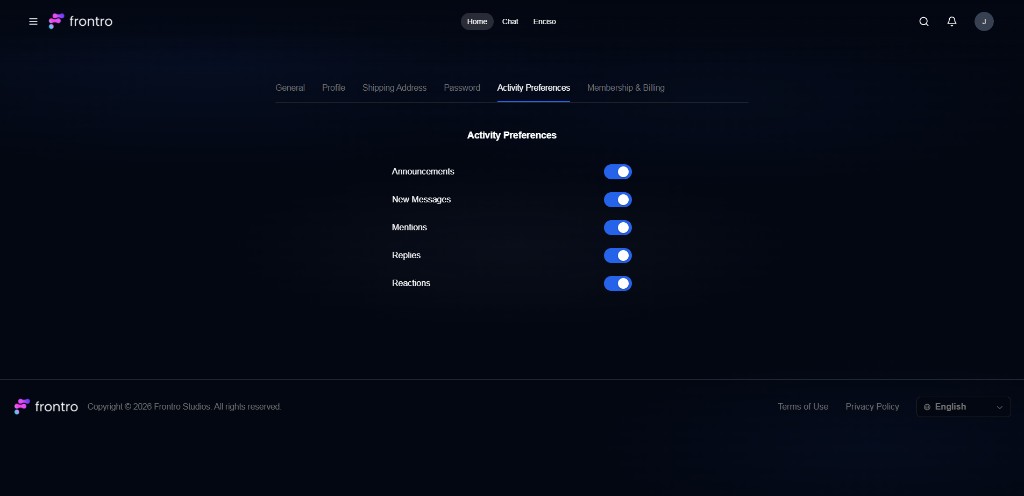
- On/off per type — Enable or disable Announcements, New Messages, Mentions, Replies, Reactions (and any other types the app offers).
- In-app vs push — Choose in-app only (Activity Center) or also push to your device. Some apps offer quiet hours or Do Not Disturb for push.
- Opting in — When you first use the app or channel, you may be prompted to enable notifications; you can change preferences at any time in settings.
For creators
You reach viewers via Push Notifications and In-App Messages. You don’t control each viewer’s in-app “comment reply” or “mention” settings—those are chosen in their own Activity Preferences. Don’t over-send push; let viewers opt in and use targeting so the right people get the right messages.
FAQ
I’m not getting any notifications.
Check Activity Preferences and ensure the type (e.g. Mentions, New Messages) is on. For push, ensure you opted in and the app has permission in your device settings.
What’s the difference between Activity Center and push?
The Activity Center is the in-app list. Push sends an alert to your device when the app is in the background. You can have one, the other, or both.
Can I turn off only push but keep in-app?
Yes. In preferences, turn off “Push” or “Send to device” for the types you want in-app only; keep in-app/Activity Center on.
I get too many notifications.
Go to Activity Preferences and turn off or reduce types you don’t need (e.g. Reactions), or use in-app only instead of push for noisier types.
Related documentation
- Push Notifications — Creator-sent push
- In-App Messages — Creator-sent in-app messages
- Community Chat — Chat and DMs
- Mentions — @mention notifications