
Polls
Engage your community with interactive polls. Gather opinions, let viewers vote on upcoming content, or add an interactive element to your channel.
Overview
Polls are a lightweight engagement tool that lets you ask your audience a question with multiple answer options. Viewers vote directly from your channel, and results update in real time.
Use cases
- Content planning — Let viewers vote on what you should create next
- Community feedback — Gather opinions on features, topics, or events
- Live interaction — Run quick polls during livestreams for real-time engagement
- Fun and engagement — Trivia, preferences, or "this or that" questions to keep your community active
Where to find it
In the left navigation, open Content, then the Polls tab. Stats: Total Polls, Active Polls, Total Votes, Average Votes. Use Search by title, Filters, List / Cards view, and + Poll to create. The empty state says: “No polls yet. Create your first poll to engage your audience.”
Creating a poll
- In Content → Polls, click + Poll to open Create New Poll.
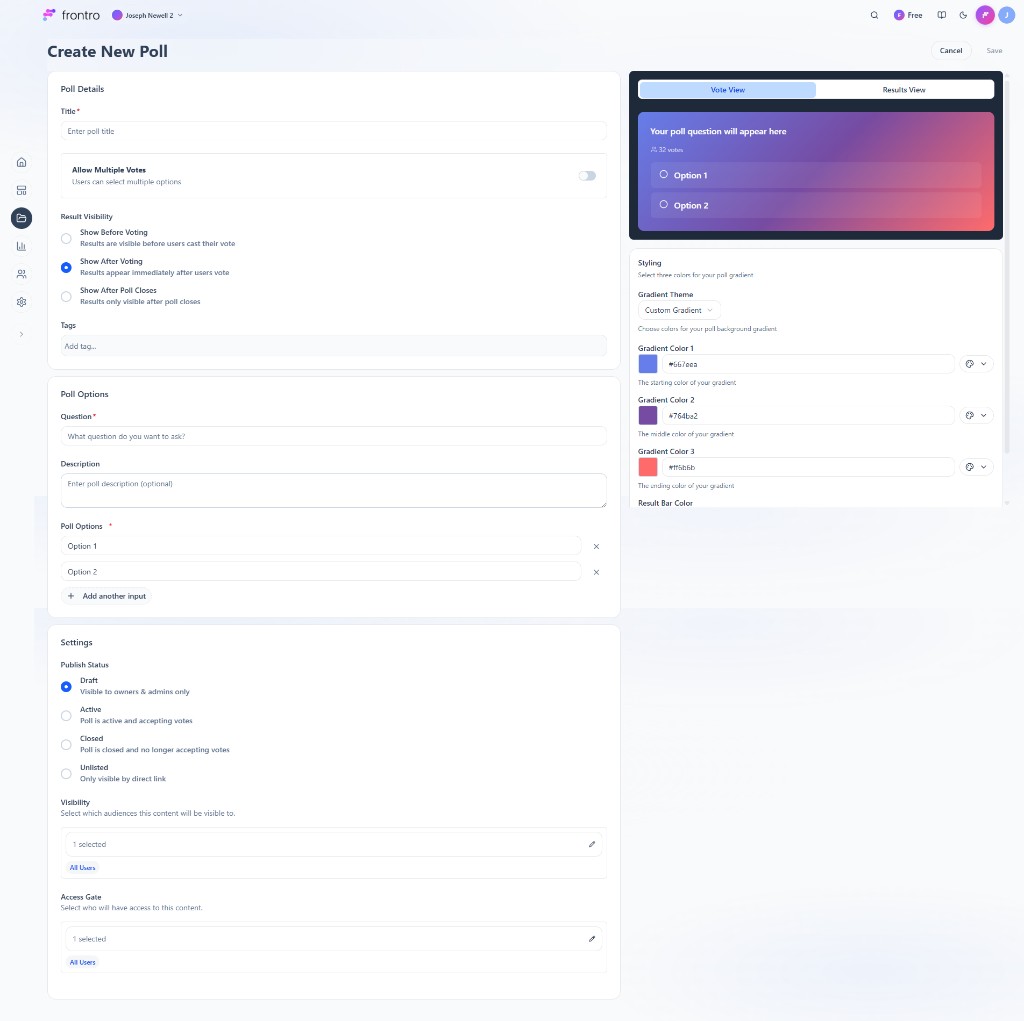
- In Poll details: set Title (required), Allow multiple votes (toggle), Result visibility (Show before voting / Show after voting / Show after poll closes), and Tags.
- In Poll options: set Question (required), optional Description, and Option 1, Option 2 (required); use Add another input for more options.
- In Settings: set Publish status (Draft, Active, Closed, Unlisted), Visibility (which audiences see the poll), and Access gate (who can access).
- Use the Vote view / Results view preview and Styling (gradient theme, colors, result bar color) to customize appearance.
- Save to publish.
Poll settings
Visibility and access
- Public — Any viewer can vote
- Members only — Restrict voting to subscription members
- Tier-specific — Only members of certain tiers can participate
Duration
- Set a specific end date and time
- Or leave the poll open until you manually close it
Results
- Live results — Voters see the current tally immediately after voting
- Hidden until closed — Results are only revealed when the poll ends
Managing polls
Editing
You can edit a poll's question or options before anyone has voted. Once votes have been cast, you can still close the poll early or extend its duration.
Closing and archiving
When a poll ends (or you close it manually), the final results are locked. Closed polls remain visible on your channel as archived content with their final results displayed.
Where polls appear
- Channel pages — Add polls to any page using the Builder
- Community Chat — Share poll links in Chat topics
- Push Notifications — Announce new polls via Push Notifications
Best practices
- Keep it simple — Clear, concise questions with distinct answer options work best
- Limit options — 2–5 answer choices keeps voting quick and decisive
- Set a deadline — Time-limited polls create urgency and drive participation
- Share results — Follow up with content based on the winning vote to show viewers their voice matters
- Pair with content — Use poll results to guide your next video, livestream, or course topic
Related documentation
- Community Overview — All community and engagement features
- Chat — Share polls in community chat topics
- Push Notifications — Notify viewers about new polls
- Builder — Feature polls on your channel pages