
Video
Upload, organize, and monetize long-form and standard video. Control visibility, access by subscription or one-time purchase, and ads.
Where to find it
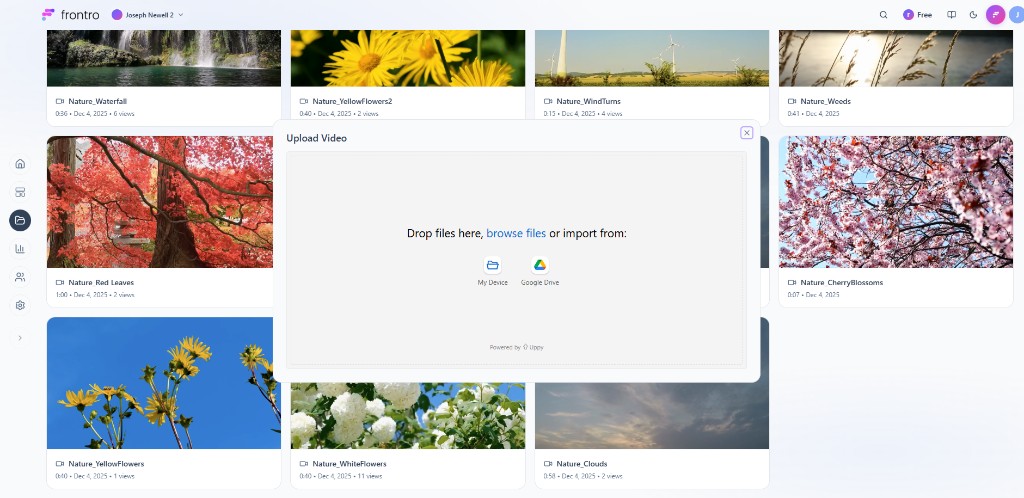
Open Content in the left navigation, then the Videos tab. You’ll see your video count, total views, watch time, and videos added this month. Use Search by title and Filters to find videos, and switch between List and Cards view. Click + Video to add a new video. Each video in the grid shows its thumbnail, title, duration, upload date, and view count.
Overview
Video is your main content type for long-form and horizontal clips. You upload a file, add a title and description, set a thumbnail, and choose who can watch—everyone, subscribers only, or one-time purchase. You can also turn on ads. Viewers watch in your channel app or on the web with standard playback controls, quality options, and comments when you enable them.
For creators
Uploading video
In Content → Videos, click + Video to open the upload modal. Drop your file, browse from your computer, or import from My Device or Google Drive. Supported formats include MP4, MOV, WebM, and MKV. When the upload finishes, you’re taken to the video edit page to add details and publish.
Editing and publishing
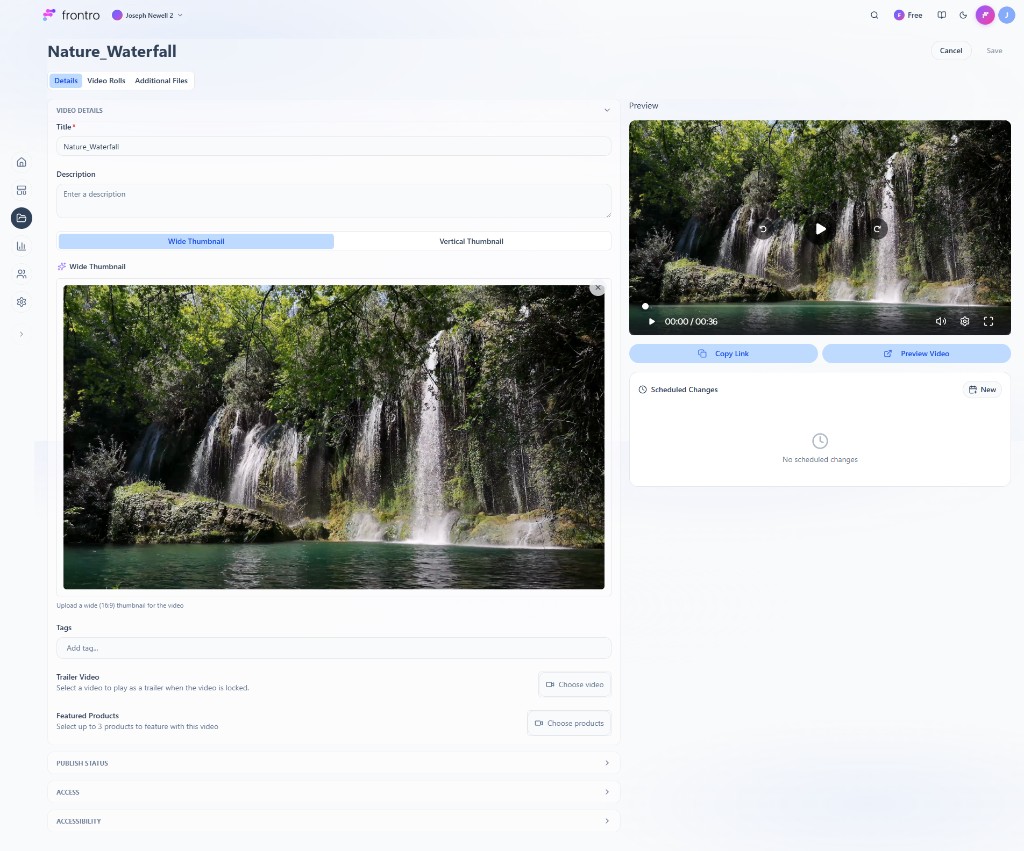
After you upload, the video edit page opens so you can add details and choose how the video is published.
Details tab
- Title (required) and Description
- Thumbnail — Choose Wide Thumbnail (16:9) or Vertical Thumbnail, then upload an image
- Tags
- Trailer video — A short clip that plays when the video is locked (for gated or paid content)
- Featured products — Up to 3 products to show with this video
Open Publish status, Access, and Accessibility to set visibility, who can watch (everyone, a subscription tier, or one-time purchase), and any accessibility options.
Preview and scheduling
On the right, you’ll see a preview of the video (or a Transcoding message while it’s still processing—processing usually takes a few minutes depending on length and quality; you can keep editing, but the video won’t play until it’s done). Use Copy Link and Preview Video to check how it looks. Scheduled Changes lets you schedule when the video goes live or when access changes. Click Save to save your changes.
Video Rolls tab
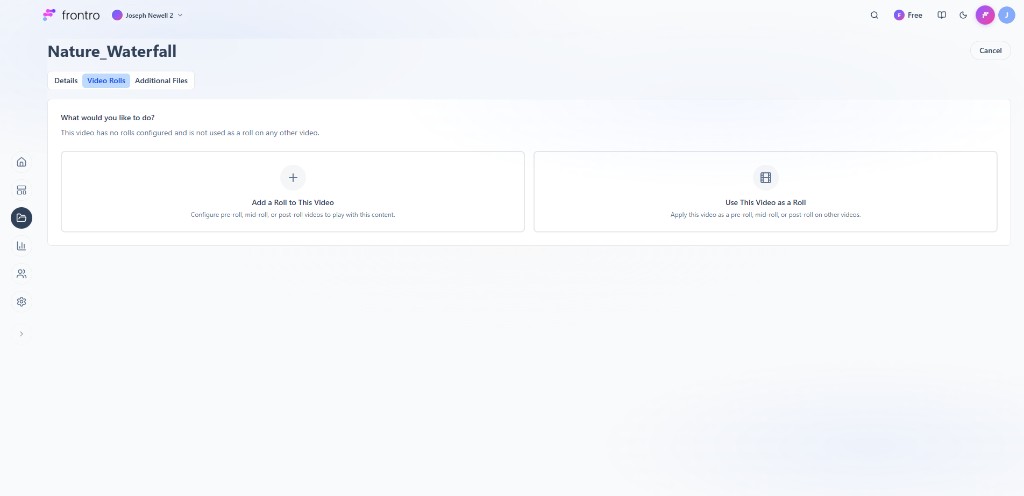
Use Video Rolls to attach other videos to this one, or to use this video as a roll on others. If the video has no rolls yet, you’ll see two options:
- Add a roll to this video — Configure pre-roll, mid-roll, or post-roll videos that play before, during, or after this content.
- Use this video as a roll — Apply this video as a pre-roll, mid-roll, or post-roll on other videos.
Additional Files tab
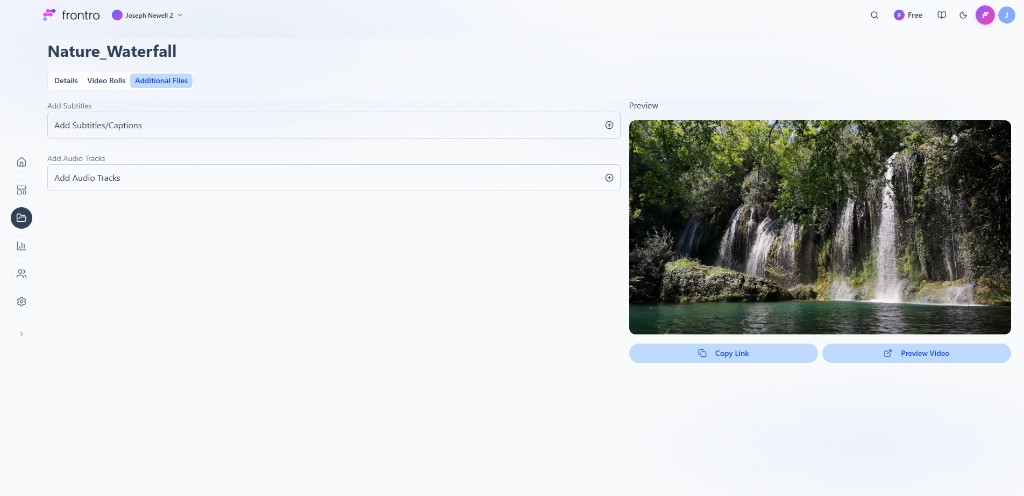
Use Additional Files to add subtitles/captions and extra audio tracks to the video. Add Subtitles/Captions and Add Audio Tracks each have a + control to upload or link the files. These sit alongside the main video and let viewers choose language or audio options in the player when available.
Video specs
- Formats — MP4, MOV, WebM, MKV (and others as shown in the uploader)
- Resolution — 1080p and below are widely supported; your channel may support higher resolutions
- Duration — Long-form is supported; for short vertical clips, use Shorts
Managing your videos
From Content → Videos, open any video to get to its edit page. Use the Details, Video Rolls, and Additional Files tabs to update the title, description, thumbnail, trailer, featured products, visibility, access, and audiences. Check Analytics (or the video’s own analytics) for views, watch time, and engagement. You can turn ads on or off per video in the video’s settings.
Access and monetization
- Free — Anyone can watch; you can still limit by audience
- Subscription — Only members of the chosen subscription tier can watch
- One-time purchase — Viewers pay once via One-Time Purchase for access
- Ads — Turn on ads to earn from views; many creators offer ad-free viewing for subscribers
Comments
Comments can be enabled or disabled when editing this video. Viewers see the comments section below (or beside) the player. For moderation and community features, see Community Chat.
Best practices
- Use clear titles and descriptions so viewers (and search) can find your content
- Choose thumbnails that reflect the video; avoid misleading images
- Use subscriptions or one-time purchases for premium content and keep some content free to grow your audience
- Balance ad load with viewer experience; ad-free subscriptions often work well for dedicated fans
FAQ
What's the difference between video and Shorts?
Shorts are vertical, short-form clips that appear in the Shorts feed. Standard video is usually horizontal and long-form and appears in your main video library and layout.
Can I restrict a video to certain audiences?
Yes. When editing the video, use audiences so only the segments you choose can see it.
Can I schedule a video to go public later?
If your channel supports it, set the publish date and time in the video's Publish status or Scheduled Changes when creating or editing.
How do I enable ads on a video?
Edit the video and turn on ads in the monetization or ads section for that video.
Related documentation
- Content Overview — All content types
- Shorts — Short-form vertical video
- Builder — Place video on your channel
- Subscriptions — Gate video by tier
- One-Time Purchases — Sell access to videos
- Community Chat — Comments and moderation