
Livestreams
Frontro supports professional live streaming with RTMP ingest and playback across web, mobile, and TV apps. Stream using any software or hardware encoder you already trust, then manage livestreams from your channel dashboard.
Where to find it
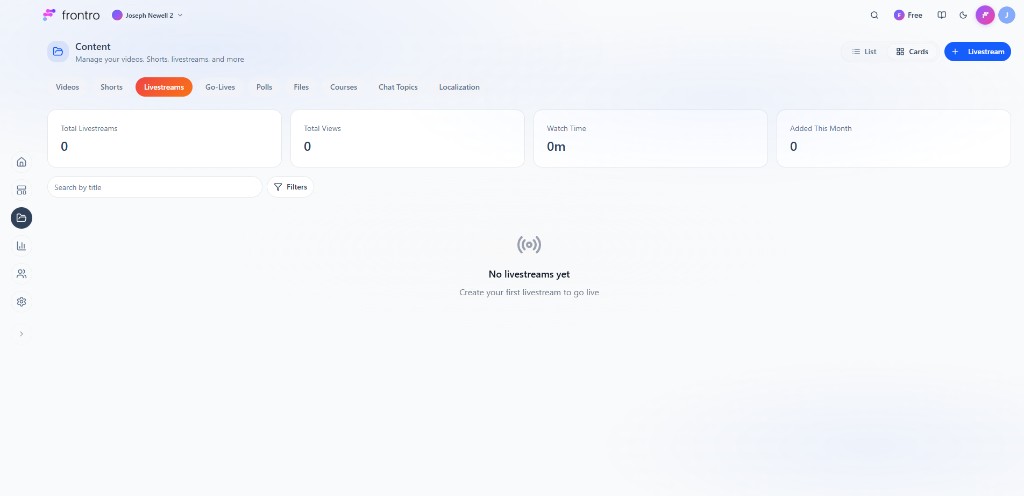
In the left navigation, open Content, then the Livestreams tab. Stats: Total Livestreams, Total Views, Watch Time, Added This Month. Use Search by title, Filters, List / Cards view, and + Livestream to create. The empty state says: “No livestreams yet. Create your first livestream to go live.”
Create Livestream form
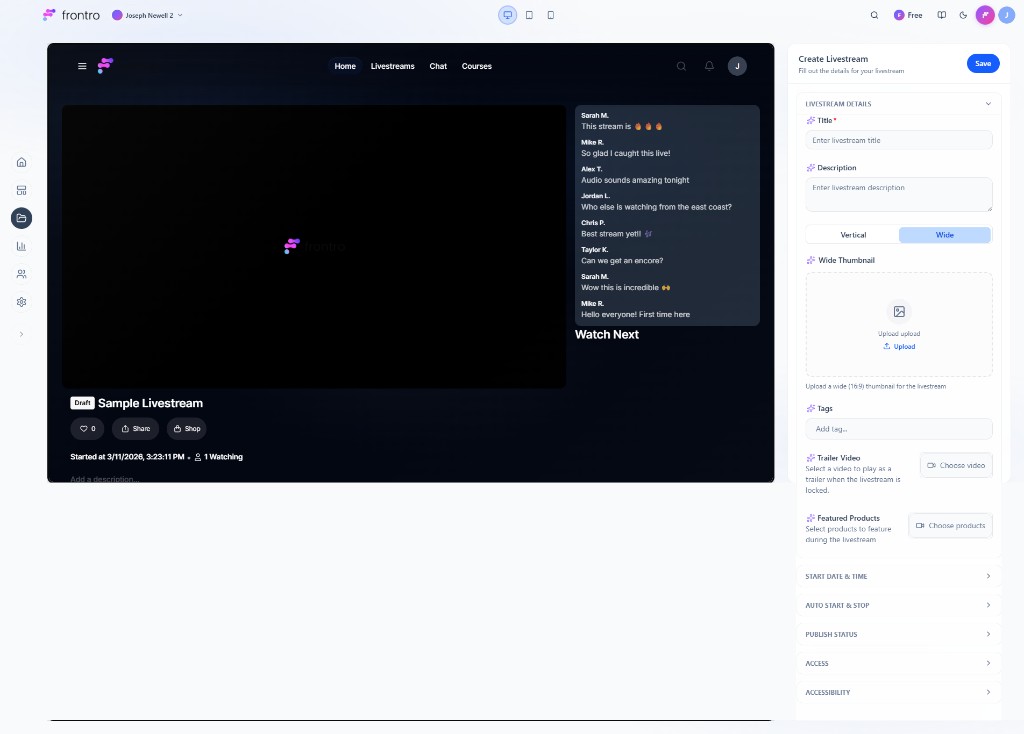
Click + Livestream to open the Create Livestream panel. Fill out Livestream Details: Title, Description, Thumbnail orientation (Vertical or Wide), Wide Thumbnail upload (16:9), Tags, Trailer video (plays when the livestream is locked), and Featured products (to showcase during the stream). Expand Start date & time, Auto start & stop, Publish status, Access, and Accessibility as needed, then Save.
Encoder Flexibility
Use Any Encoder You Want
Frontro supports any RTMP-compatible encoder, giving you complete freedom to use your preferred streaming setup:
Software Encoders
- OBS Studio (Free, open-source)
- Streamlabs Desktop
- XSplit Broadcaster
- Wirecast
- NVIDIA Broadcast
- Ecamm Live (macOS)
- vMix
- ManyCam
Hardware Encoders
- Blackmagic ATEM Mini Series
- LiveU Solo
- Teradek VidiU
- Pearl Series (Epiphan)
- YoloBox Pro
- Magewell Ultra Stream
- Roland V-Series
Mobile Encoders
- Larix Broadcaster
- Streamlabs Mobile
- Prism Live Studio
- BeLive
Technical Specifications
RTMP Configuration
Connect to Frontro using these RTMP settings:
RTMP URL: rtmp://stream.frontro.com/live
Stream Key: [Your unique stream key from dashboard]
Advanced RTMP Parameters
# Full connection string format
rtmp://stream.frontro.com/live/{stream_key}

# With custom parameters
rtmp://stream.frontro.com/live/{stream_key}?backup=1&lowLatency=1
Supported Streaming Protocols
Currently Supported
- RTMP (Real-Time Messaging Protocol)
- RTMPS (Secure RTMP over TLS)
- HLS (HTTP Live Streaming) for playback
- DASH (Dynamic Adaptive Streaming) for playback
Coming Soon
- SRT (Secure Reliable Transport) - Enhanced reliability
- RIST (Reliable Internet Stream Transport) - Professional broadcast quality
Video Specifications
Supported Codecs
- Video: H.264/AVC (recommended), H.265/HEVC, VP9
- Audio: AAC-LC (recommended), MP3, Opus
Resolution Support
4K Ultra HD: 3840×2160 @ 30/60 fps
1440p: 2560×1440 @ 30/60 fps
1080p Full HD: 1920×1080 @ 30/60 fps
720p HD: 1280×720 @ 30/60 fps
480p SD: 854×480 @ 30 fps
360p: 640×360 @ 30 fps
Bitrate Recommendations
4K @ 60fps: 20,000-40,000 kbps
4K @ 30fps: 13,000-25,000 kbps
1080p @ 60fps: 4,500-9,000 kbps
1080p @ 30fps: 3,000-6,000 kbps
720p @ 60fps: 2,500-5,000 kbps
720p @ 30fps: 1,500-4,000 kbps
Audio Specifications
- Sample Rate: 44.1 kHz or 48 kHz
- Bitrate: 128-320 kbps
- Channels: Mono, Stereo, 5.1 Surround
Setting Up Your Stream
Quick Start with OBS Studio
-
Download OBS Studio from obsproject.com
-
Configure Stream Settings
Settings > Stream
Service: Custom
Server: rtmp://stream.frontro.com/live
Stream Key: [Your key from Frontro dashboard]
- Optimize Output Settings
Settings > Output
Output Mode: Advanced
Encoder: x264 or NVIDIA NVENC
Rate Control: CBR
Bitrate: 6000 kbps (for 1080p 30fps)
Keyframe Interval: 2
- Configure Video Settings
Settings > Video
Base Resolution: 1920x1080
Output Resolution: 1920x1080
FPS: 30 or 60
Hardware Encoder Setup (ATEM Mini Example)
- Connect ATEM Software Control
- Open Streaming Settings
- Configure Platform:
- Platform: Custom
- Server:
rtmp://stream.frontro.com/live - Key: Your Frontro stream key
- Set Quality: 1080p30 at 6 Mbps
- Start Streaming: Press "ON AIR" button
Livestream Trailer Videos
Maximize conversions from locked livestream pages by using trailer videos instead of static thumbnails. When a viewer doesn't have access to your livestream, a compelling trailer video can significantly increase subscription and purchase conversions.
How Trailer Videos Work
When a livestream is locked (viewer doesn't have access), Frontro displays:
- Without trailer: A static thumbnail with a subscription/purchase CTA
- With trailer: A looping video preview with an overlay CTA
The trailer video plays automatically (muted) when a locked livestream page loads, giving potential subscribers a taste of your content and creating urgency to unlock the full experience.
Setting Up a Trailer Video
- Upload a video to your channel's video library first
- Create or edit a livestream in the Creator Dashboard
- Select "Trailer Video" in the livestream settings
- Choose from your existing videos - select a compelling preview clip
The trailer video must be a previously uploaded video in your channel. We recommend using short, engaging clips (30-90 seconds) that showcase the value of your content.
Best Practices for Trailer Videos
Content Guidelines
- Keep it short: 30-90 seconds works best for conversion
- Start strong: Hook viewers in the first 5 seconds
- Show value: Preview the type of content they'll get access to
- Include faces: Personal connection increases conversions
- End with a tease: Leave them wanting more
Technical Recommendations
Duration: 30-90 seconds
Resolution: 1080p or higher
Format: MP4 (H.264)
Audio: Include but expect muted autoplay
Conversion Optimization
- Use action-oriented clips from previous streams
- Include testimonials or audience reactions
- Show exclusive moments only available to subscribers
- Highlight community interaction and chat engagement
Trailer Video Player Behavior
The trailer video player includes these features across all platforms:
| Feature | Behavior |
|---|---|
| Autoplay | Starts playing when page loads (muted) |
| Looping | Automatically loops when video ends |
| Mute Toggle | Users can unmute to hear audio |
| CTA Overlay | Subscribe/Purchase button always visible |
| Responsive | Adapts to all screen sizes |
| Mobile Optimized | Touch-friendly controls |
Platform Support
Trailer videos are supported across all Frontro platforms:
- ✅ Web (Desktop & Mobile browsers)
- ✅ iOS App (SwiftUI with AVPlayer)
- ✅ Android App (Jetpack Compose with ExoPlayer)
- ✅ Smart TVs (Coming soon)
Advanced Streaming Features
Low Latency Mode
Enable ultra-low latency streaming (2-5 seconds):
In your stream settings, enable Low latency mode and set target latency (e.g. 2–5 seconds). Your encoder can use a smaller buffer (e.g. 1 second) when low latency is enabled.
Redundant Streaming
Set up backup streams for reliability:
# Primary stream
rtmp://stream.frontro.com/live/{stream_key}

# Backup stream
rtmp://backup.stream.frontro.com/live/{stream_key}?backup=1
Stream Health Monitoring
Real-Time Metrics
Monitor your stream health in real time: during a stream, open Livestreams (or Streaming) in your dashboard and select the active stream. The Stream health or Metrics view shows bitrate, FPS, and dropped frames updating live, so you can spot encoder or network issues without leaving the dashboard.
Health Indicators
- Green: Excellent (0% dropped frames, stable bitrate)
- Yellow: Good (< 1% dropped frames)
- Red: Poor (> 5% dropped frames or unstable connection)
Network Requirements
Minimum Requirements
- Upload Speed: 5 Mbps (for 720p 30fps)
- Latency: < 100ms to nearest edge server
- Packet Loss: < 2%
Recommended Setup
- Wired Connection: Ethernet preferred over Wi-Fi
- Dedicated Bandwidth: 2x your target bitrate
- Quality of Service: Prioritize streaming traffic
Edge Server Locations
North America: NYC, LAX, CHI, DAL, SEA
Europe: LON, FRA, AMS, MAD
Asia-Pacific: TOK, SIN, SYD, BOM
South America: SAO, GRU
Troubleshooting
Connection Issues
# Test RTMP connectivity
ffmpeg -re -i test.mp4 -c copy -f flv rtmp://stream.frontro.com/live/{key}

# Check latency to servers
ping stream.frontro.com

# Trace route for network path
traceroute stream.frontro.com
Encoder Settings Optimization
CPU Usage Too High
- Lower preset (faster encoding)
- Reduce resolution or framerate
- Use hardware encoding (NVENC, QuickSync)
Stream Buffering
- Lower bitrate by 20%
- Increase keyframe interval to 2-4 seconds
- Check upload bandwidth consistency
Audio Sync Issues
- Set audio offset in encoder (-50ms to +50ms)
- Use CBR for both video and audio
- Ensure consistent sample rates
Comments
Comments can be enabled or disabled when creating or editing a livestream. For moderation and community features, see Community Chat.
Best Practices
Pre-Stream Checklist
- Test Stream: Always run a private test
- Check Bandwidth: Run speed test
- Monitor CPU: Keep usage under 80%
- Audio Levels: Peak at -6dB
- Scene Setup: Test all transitions
Professional Tips
- Use a wired internet connection
- Stream at 80% of available upload bandwidth
- Keep local recordings as backup
- Use a UPS for power protection
- Monitor chat from second device
Python streaming monitor
import requests
import time

class FrontroStreamMonitor:
    def __init__(self, api_key, session_id):
        self.api_key = api_key
        self.session_id = session_id
        self.base_url = "https://api.frontro.com/v1"

    def get_stream_health(self):
        headers = {"Authorization": f"Bearer {self.api_key}"}
        response = requests.get(
            f"{self.base_url}/streams/sessions/{self.session_id}/health",
            headers=headers
        )
        return response.json()

    def monitor_stream(self, interval=5):
        while True:
            health = self.get_stream_health()
            print(f"Bitrate: {health['bitrate']} kbps")
            print(f"FPS: {health['fps']}")
            print(f"Viewers: {health['viewers']}")
            time.sleep(interval)
Node.js auto-recovery
const FrontroStream = require('frontro-sdk')

class StreamManager {
  constructor(apiKey, streamKey) {
    this.client = new FrontroStream(apiKey)
    this.streamKey = streamKey
    this.reconnectAttempts = 0
  }

  async monitorConnection() {
    setInterval(async () => {
      const health = await this.client.getStreamHealth()

      if (health.status === 'disconnected') {
        await this.attemptReconnect()
      }
    }, 5000)
  }

  async attemptReconnect() {
    if (this.reconnectAttempts < 3) {
      console.log(`Attempting reconnect ${this.reconnectAttempts + 1}/3`)
      // Trigger encoder restart
      this.reconnectAttempts++
    } else {
      console.error('Max reconnection attempts reached')
      // Send alert notification
    }
  }
}
Apple TV and Roku viewing
If your audience watches on TV devices, plan for a slightly different upcoming-live experience.
Apple TV / tvOS
On Apple TV, the upcoming livestream modal shows:
- the scheduled stream time
- the current livestream state
- a QR code that opens the channel's livestream page on the viewer's phone
When the livestream changes from upcoming to live, the primary action switches to Watch Now so viewers can jump straight into playback from the TV app.
Roku
Roku apps keep checking the livestream state in the background for viewers who open an event before it starts. That makes Roku a good fit for scheduled events where viewers may arrive early and wait for the stream to go live.
Operational tip
Publish the livestream artwork, title, and channel URL before you begin promotion. TV device flows rely on that metadata being ready before the event starts.
Support Resources
- Technical Documentation: docs.frontro.com/streaming
- Encoder Presets: Download optimized presets
- Network Test Tool: test.frontro.com
- 24/7 Support: support@frontro.com
Last updated: March 2026 | Trailer videos available on web, iOS, and Android