
Localization
Expand your channel's reach by delivering content in multiple languages and adapting to regional preferences.
Overview
Frontro's localization features allow you to customize your channel for different regions and languages, helping you connect with a global audience. From translated interfaces to region-specific content recommendations, our tools make it easy to create a truly international presence.
Supported Languages
Frontro currently supports over 50 languages for channel localization, including:
- English (US, UK, AU, CA)
- Spanish (ES, MX, LATAM)
- French (FR, CA)
- German
- Japanese
- Korean
- Chinese (Simplified and Traditional)
- Portuguese (PT, BR)
- Russian
- Arabic
- Hindi
Channel Localization
Interface Translation
Your channel's interface elements can be automatically translated:
- Navigation menus
- Buttons and controls
- System messages
- Error notifications
Creating a localization project (Crowdin)
Localization projects let you export content to Crowdin for translation and then import translations back. The flow uses Content → Localization.
Step 1: Open Localization and create a project
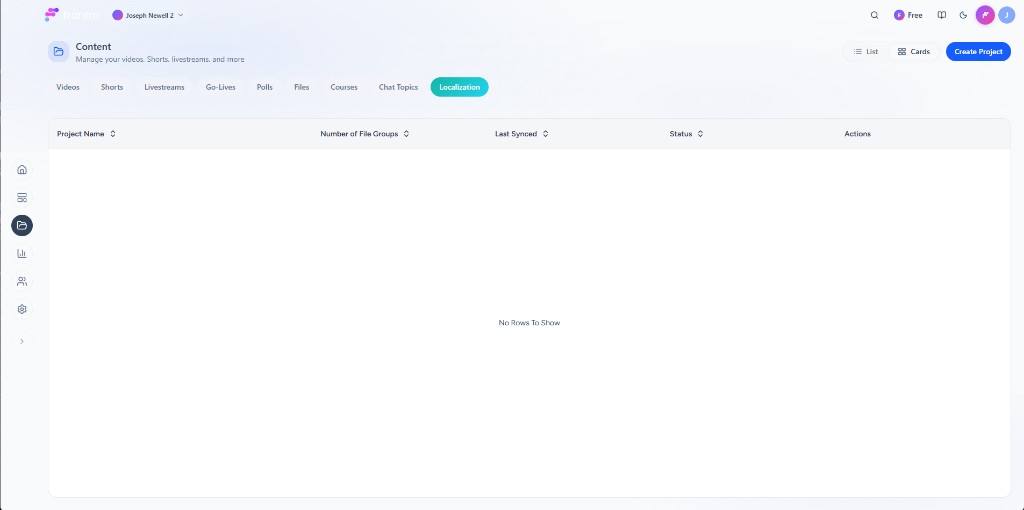
In the left navigation, go to Content, then open the Localization tab. You’ll see a table of your existing projects (if any) with columns: Project Name, Number of File Groups, Last Synced, Status, and Actions. You can switch between List and Cards view. Click Create Project to start a new project.
Step 2: Select content to export
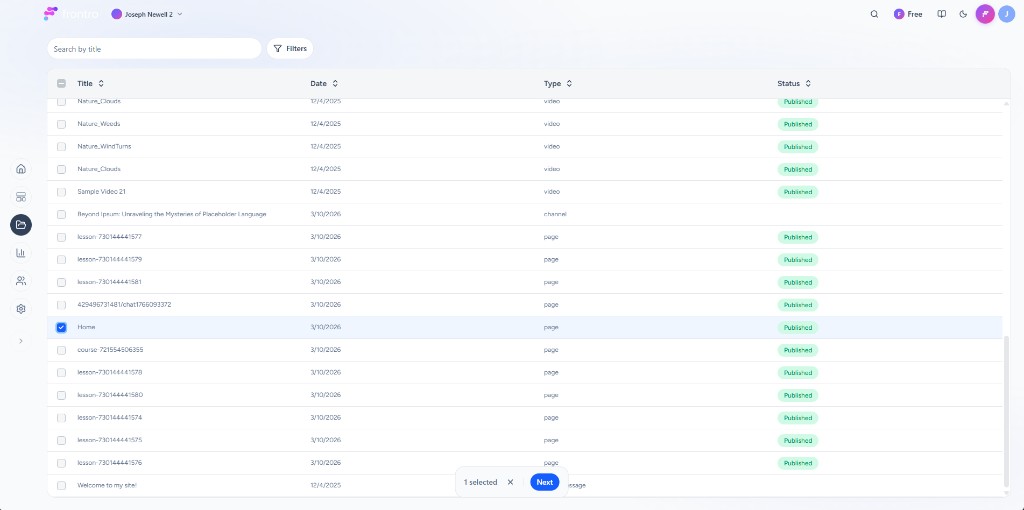
Choose which content to include. Use Search by title and Filters to find items. The table shows Title, Date, Type (e.g. video, channel, page), and Status (e.g. Published). Select one or more rows with the checkboxes, then click Next.
Step 3: Export summary and Crowdin Project ID
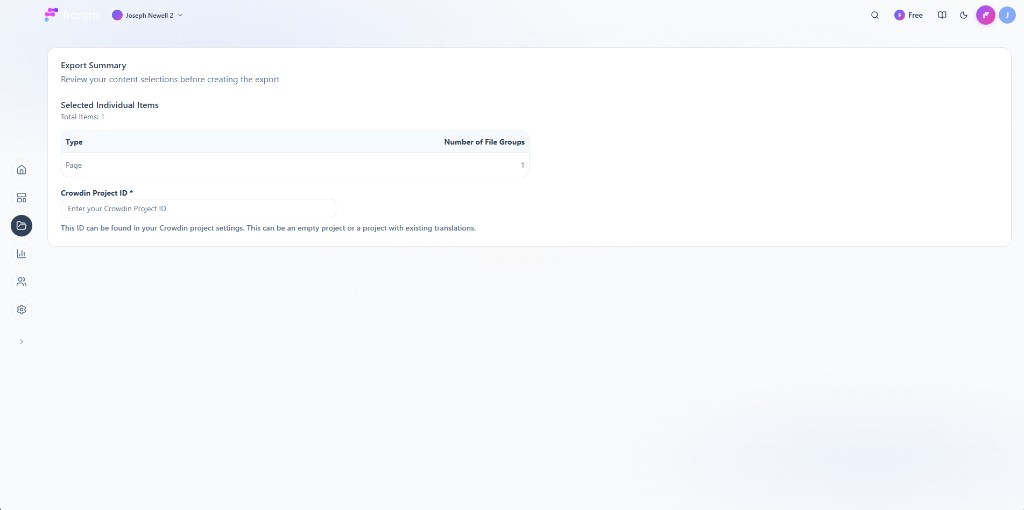
On the Export Summary screen, review Selected Individual Items (total count, Type, Number of File Groups). Enter your Crowdin Project ID (required)—find it in your Crowdin project settings; you can use an empty project or one with existing translations. Submit to create the export and sync with Crowdin.
After the project is created, it appears in the Localization table. Use Actions to sync, edit, or manage it.
Custom Translations
For more precise control, you can provide custom translations. In Content → Localization, manage translation projects and add or edit translations per language. For each key (e.g. channel.welcome, subscribe.button, membership.tiers) enter the translated text for that locale (e.g. Spanish Mexico). If you don’t see Localization under Content, the feature may not be enabled for your channel—contact support to enable it.
Content Localization
Subtitles and Captions
- Automatic Generation: AI-powered speech-to-text in multiple languages
- Manual Upload: Support for SRT, VTT, and other subtitle formats
- Translation Services: Integrate with professional translation services
Multilingual Content
Strategies for managing content in multiple languages:
- Duplicate Channels: Create region-specific versions of your channel
- Content Tagging: Tag content with available languages
- Smart Delivery: Automatically serve content in the user's preferred language
Regional Settings
Time and Date Formats
Automatically display times and dates in the user's local format:
- 12/24-hour time display
- Various date formats (MM/DD/YYYY, DD/MM/YYYY, etc.)
- Time zone conversion
Currency Localization
For channels with monetization features:
- Display prices in local currencies
- Support for multiple payment methods by region
- Tax handling for different jurisdictions
Implementation Guide
Basic Setup
- When localization is enabled for your channel, open Content → Localization in the left navigation
- Create or manage translation projects and select your target languages
- Add or import translations for interface keys and content
- Use Content → [item] → Translations for per-item titles and descriptions
If you don’t see Localization: The Content → Localization option is not in Settings; it appears under the Content section in the left nav when the feature is enabled for your channel. If it’s missing, contact support or your account team to enable localization.
Best Practices
- Start with Key Markets: Focus on languages that match your target audience
- Professional Review: Have native speakers review automatic translations
- Cultural Adaptation: Consider cultural differences beyond just language
- Consistent Updates: Keep translations updated when adding new content
- User Feedback: Collect input from international users to improve localization
Next Steps
- Explore Analytics to track audience by region and language
- Learn about Audiences to create language-based user segments
- Set up Channel Content strategies for multilingual content