Users

Manage all users and admins on your channel from the Users tab in Engagement. View user details, invite new users, export data, and take actions like resetting passwords or blocking accounts.

Where to find it

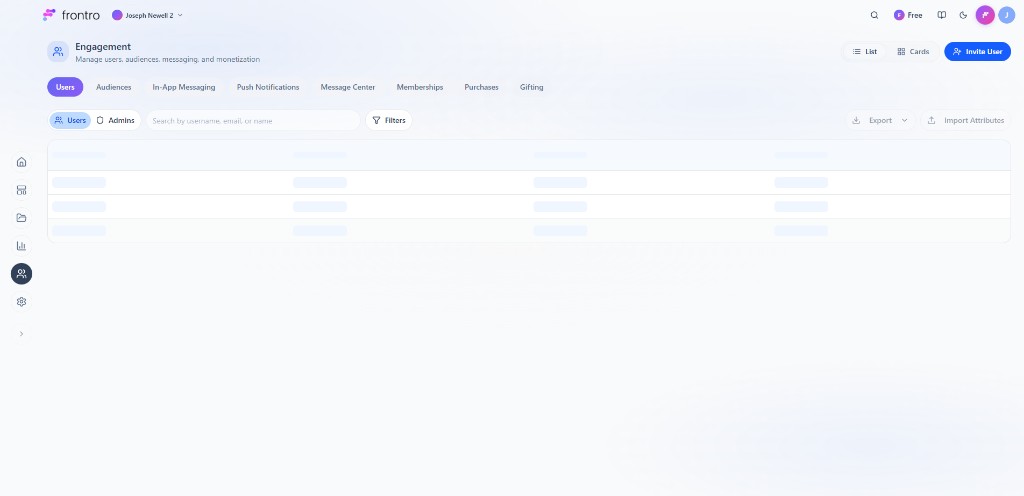
In the left navigation, open Engagement. The Users tab is the first tab across the top (alongside Audiences, In-App Messaging, Push Notifications, Message Center, Memberships, Purchases, and Gifting). Use the Users / Admins sub-tabs to switch between all users and admin accounts. The top-right has List / Cards view toggle and + Invite User.

Engagement → Users tab: Users/Admins sub-tabs, search, filters, online/offline and Last Active, Export, Import Attributes, + Invite User

Users tab

The Users sub-tab lists all registered users on your channel. Use Search by username, email, or name and Filters to find specific users. Export downloads your user list, and Import Attributes lets you bulk-update user data.

The user table shows online/offline indicators and a Last Active date so you can see who is active on the channel and when they were last seen. Columns include:

ColumnWhat it shows
UsernameThe user's handle
NameDisplay name or full name
EmailRegistered email address
Member SinceDate the user joined
Last ActiveWhen the user was last active
User AccessCurrent subscription or access level (e.g. Free subscription)
Access LevelRole such as OWNER, ADMIN, or member
Auth MethodHow the user signed in (Email, Google, Apple)
ActionsPer-user action menu (see below)

User actions

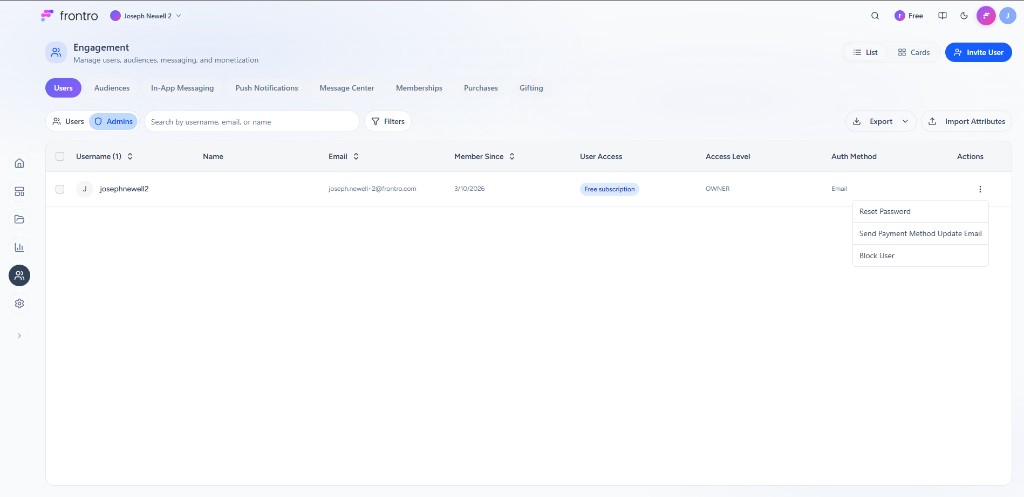
Click the three-dot menu (Actions column) on any user row to see available actions.

User actions menu: Reset Password, Send Payment Method Update Email, Block User

  • Reset Password — Send a password reset email to the user.
  • Send Payment Method Update Email — Prompt the user to update their payment method.
  • Block User — Block the user from accessing the channel. Blocked users can't post comments, chat, or interact.

Admins tab

The Admins sub-tab filters the list to show only users with admin-level access (OWNER, ADMIN, etc.). The same table columns and actions apply. Use this tab to quickly review who has elevated permissions on your channel.

Admins tab: table with Username, Name, Email, Member Since, User Access, Access Level, Auth Method, Actions

Inviting users

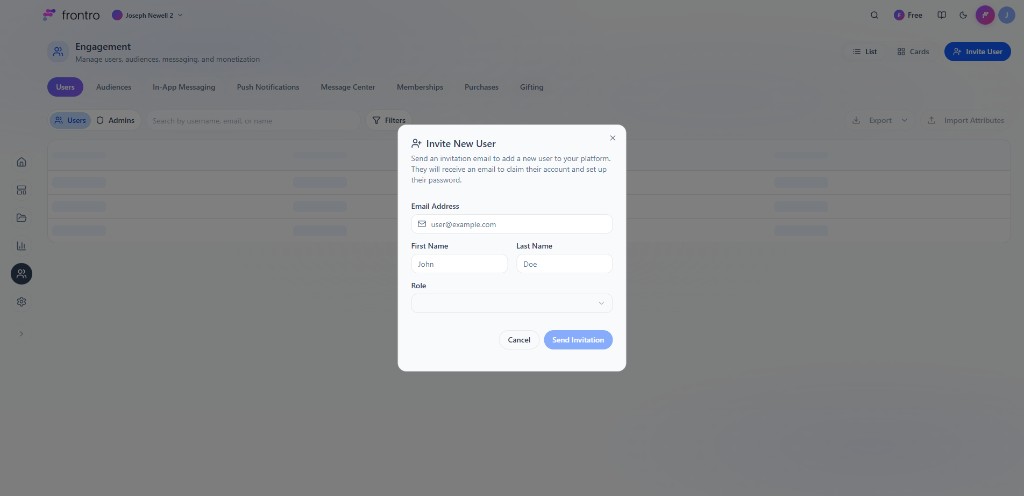
Click + Invite User (top-right) to open the Invite New User modal.

Invite New User modal: Email Address, First Name, Last Name, Role, Send Invitation

  • Email Address — Required. The email where the invitation will be sent.
  • First Name and Last Name — Pre-fill the user's name.
  • Role — Choose the role for the invited user (dropdown).
  • Click Send Invitation to send. The user receives an email to claim their account and set up a password.
User profiles

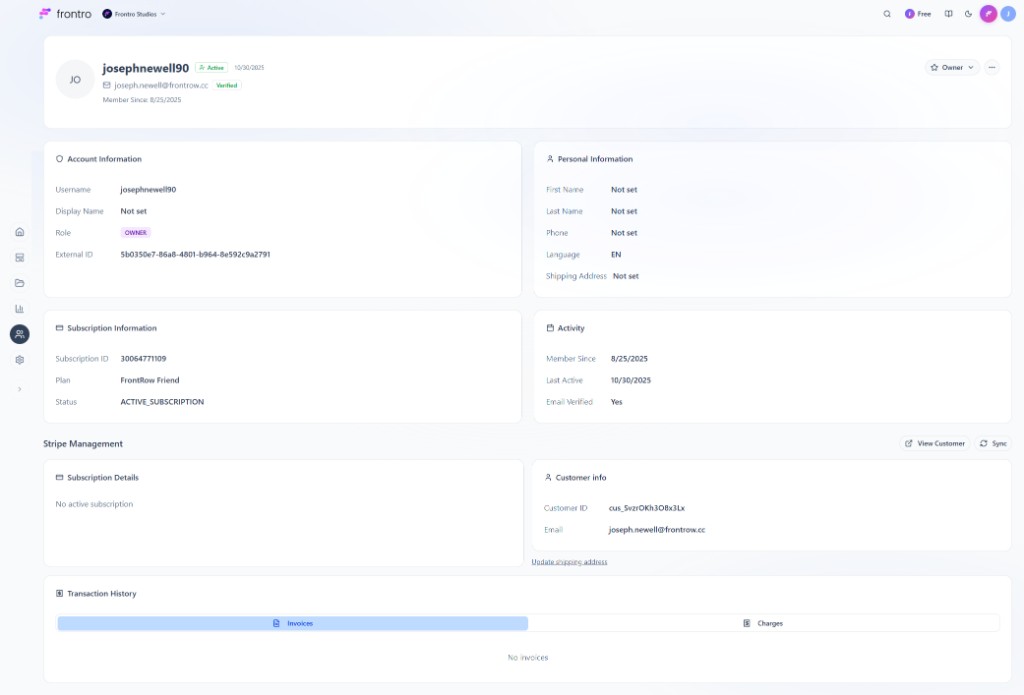
Click a user row to open their profile. The header shows the user's username, account status, email (with a verified badge when confirmed), role (e.g. OWNER), and Member Since. The Profile tab is an overview of account, personal, subscription, and activity details, plus Stripe billing tools and transaction history.

Profile tab

The profile view is organized into sections you can scan top to bottom:

User profile → Profile tab: account summary, account and personal details, subscription and activity, Stripe management, transaction history

Summary (top) — Initials or avatar, username, status (e.g. Active) with date, email with verification state, member-since date, role badge, and actions (e.g. owner options and overflow menu).

Account information — Username, display name, Role (badge), and external identifiers used by integrations.

Personal information — First name, last name, phone, shipping address, and Language (e.g. EN).

Subscription information — Subscription ID, plan name, and subscription status.

ActivityMember Since, Last Active, and whether Email is verified.

Stripe management — Customer and subscription context for billing: open the customer in Stripe, sync data, review subscription status, and see Customer ID, email, and links such as updating shipping address when applicable.

Transaction history — Tabs for Invoices and Charges to review billing history for that user.

FieldDescription
EmailRegistered email with verification status
Display NamePublic-facing name
First NameFirst name
Last NameLast name
PhonePhone number
LanguagePreferred language (e.g. EN)
Last ActiveWhen the user was last active (also in the user list)

Security tab

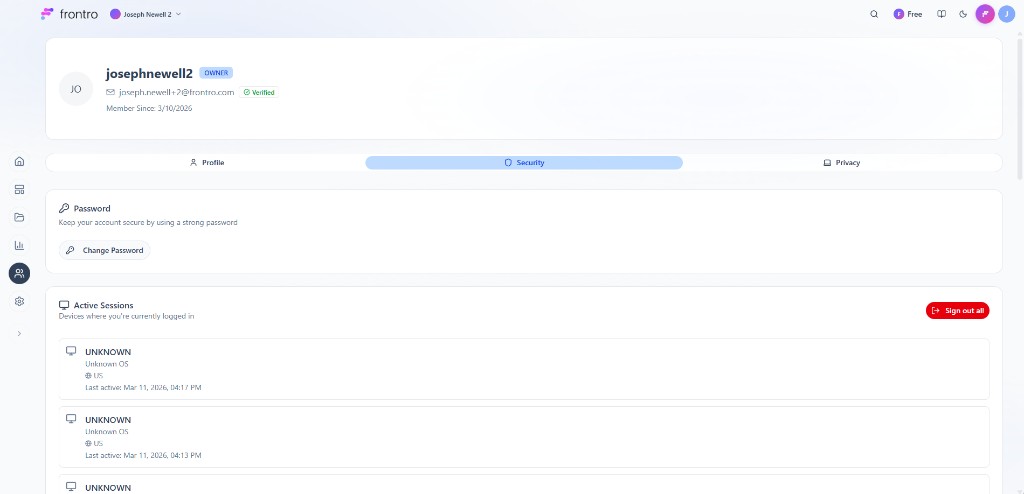
User profile → Security tab: Password with Change Password, Active Sessions with device list and Sign out all

  • PasswordChange Password to update the user's password.
  • Active Sessions — Lists devices where the user is currently logged in, showing device name, OS, location, and last active time. Use Sign out all to terminate all sessions.

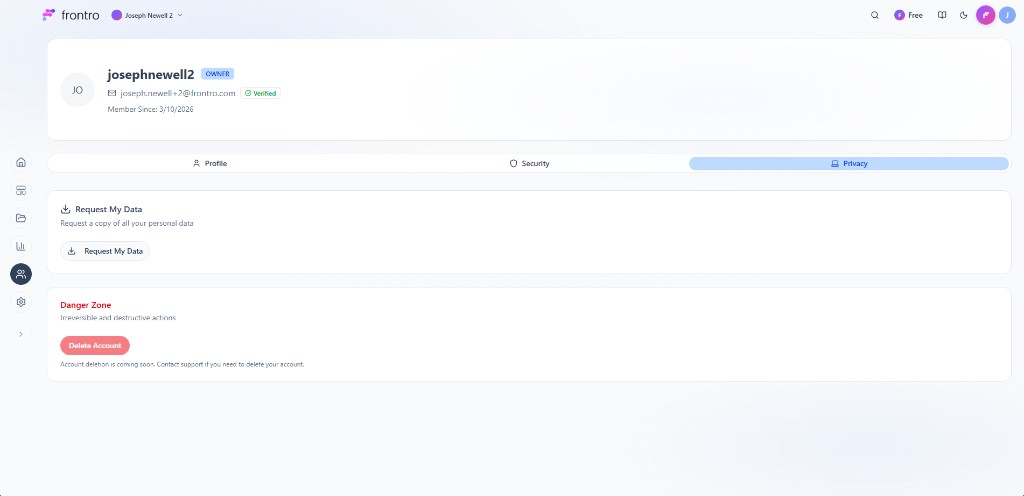
Privacy tab

User profile → Privacy tab: Request My Data, Danger Zone with Delete Account

  • Request My Data — The user can request a copy of all their personal data.
  • Danger ZoneDelete Account to permanently delete the account. Account deletion is coming soon; contact support if needed.

FAQ

How do I make someone an admin? Invite them with an admin role, or change their role from their user profile or actions menu.

Can I export my user list? Yes. On the Users tab, click Export to download user data.

What does blocking a user do? Blocked users can't post comments, chat messages, or interact with the community. Blocking doesn't revoke access to viewing content in most cases.

Can users delete their own accounts? Account self-deletion is coming soon. For now, users should contact support.

Was this page helpful?