
Downloadables
Give your viewers access to files they can download and keep. Downloadables let you share PDFs, templates, presets, guides, source files, and any other digital assets directly from your channel.
Overview
Downloadables are standalone digital files you upload to Frontro for your audience to access. Unlike videos or courses, downloadables are files viewers save to their own devices — think worksheets, resource packs, design assets, or bonus materials.
Use cases
- Worksheets and guides — Companion materials for your courses or tutorials
- Templates — Design templates, spreadsheet templates, or document templates
- Presets and profiles — Photo/video editing presets, color profiles, or LUTs
- Source files — Project files, code repositories, or design source files
- eBooks and PDFs — Written content, manuals, or reference guides
- Audio files — Sound effects, music tracks, or podcast bonus content
Where to find it
In the left navigation, open Content, then the Files tab. Stats: Total Files, Added This Month. Use Search by title, Filters, List / Cards view, and + File to upload. The empty state says: “No files yet. Upload your first file to get started.”
Creating a downloadable
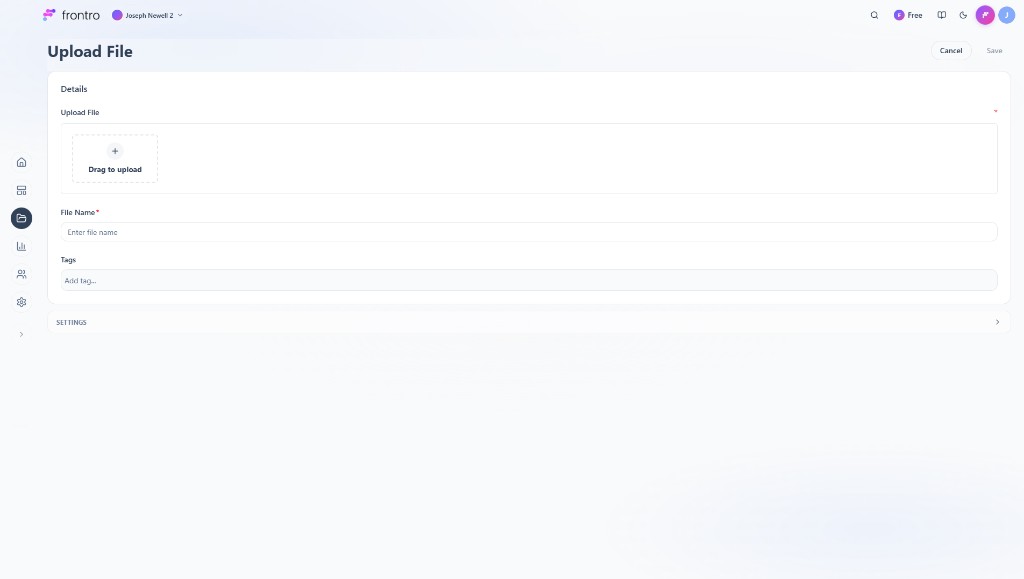
- In Content → Files, click + File to open the Upload File form.
- Drag to upload or use the upload area; in Details set File name (required) and Tags. Expand Settings for access or other options.
- Add a title, description, and thumbnail when the form supports them.
- Configure access settings (free, subscription-gated, or one-time purchase) in Settings or the file’s edit view.
- Save to publish.
Supported file types
Frontro accepts most common file types for downloadables:
| Category | Formats |
|---|---|
| Documents | PDF, DOCX, XLSX, PPTX, TXT, CSV |
| Images | PNG, JPG, PSD, AI, SVG, TIFF |
| Audio | MP3, WAV, FLAC, AAC |
| Video | MP4, MOV |
| Archives | ZIP, RAR, 7Z |
| Code | Any text-based file |
File size limits
- Per file: Up to 5 GB
- Storage: Included with your Frontro plan
Access control
Control who can download your files:
- Free — Available to all viewers
- Subscription-gated — Only available to members of specific subscription tiers
- One-time purchase — Sell individually via One-Time Purchases
Managing downloadables
Editing
Update your downloadable's metadata, replace the file, or change access settings at any time from the Downloadables section of your dashboard.
Organizing
- Add descriptive titles and descriptions to help viewers find files
- Use the Builder to feature downloadables on your channel pages
- Group related files together for easy discovery
Best practices
- Clear naming — Use descriptive file names and titles so viewers know what they're getting
- Thumbnail — Add a preview image so the downloadable is visually identifiable in your content library
- Companion content — Pair downloadables with related videos or courses for added value
- Version updates — Replace files when you release updated versions; viewers with access will get the latest
Related documentation
- Content Overview — All content types on Frontro
- Subscriptions — Gate downloadables by membership tier
- One-Time Purchases — Sell downloadables individually
- Builder — Feature downloadables on your channel