
Import products
Move an existing product catalog into Frontro with a CSV file. Frontro recognizes exports from Shopify, WooCommerce, and Squarespace, as well as the downloadable Frontro template. Frontro validates every row and shows row-level errors before any products are created.
Before you begin
Frontro imports the product title, description, price, SKU, barcode, inventory quantity, inventory policy, shipping requirement, weight, visibility, and destination URL when those values are available in the source file.
Keep these behaviors in mind:
- Product variants become separate Frontro products. Their option values are added to the title, such as Trail Tee — Size: Large, so each SKU and price is preserved.
- Product images aren't imported yet. Add images after the products are created.
- Currency defaults to USD when the export doesn't include a currency column.
- Shopify stores with multiple inventory locations don't include quantities in the product export. Rows that already allow continued selling import with a quantity of zero. Rows configured to stop selling show a validation error until you enter a non-negative value in the Inventory quantity column.
- Nothing is created until you click the final Import products button.
Export products from Shopify
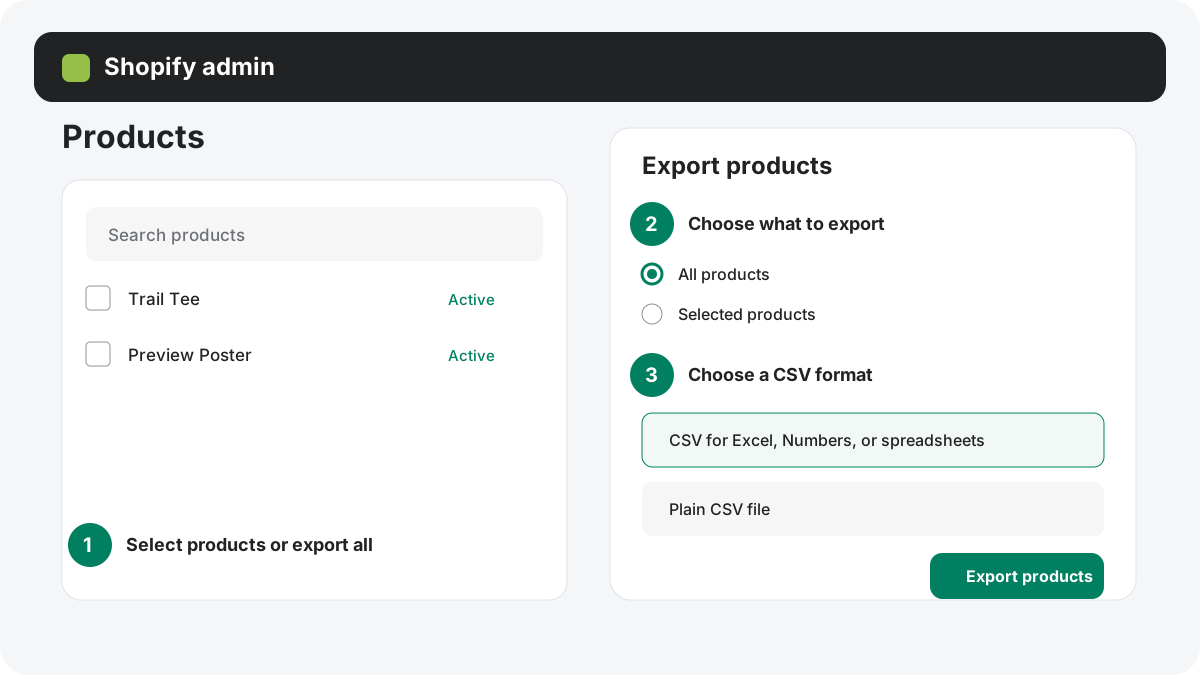
- In Shopify admin, open Products.
- Click Export.
- Choose the current page, all products, selected products, or products matching your current filters.
- Choose either CSV format. Use the spreadsheet format if you plan to inspect or edit the file first.
- Click Export products. Shopify downloads smaller exports immediately and emails larger exports.
Don't reorder a Shopify export before importing it. Shopify stores product variants and additional images on adjacent rows, and sorting can separate those rows from their product.
For Shopify's current export behavior and column definitions, see Exporting products and Using CSV files to import and export products.
Import the CSV into Frontro
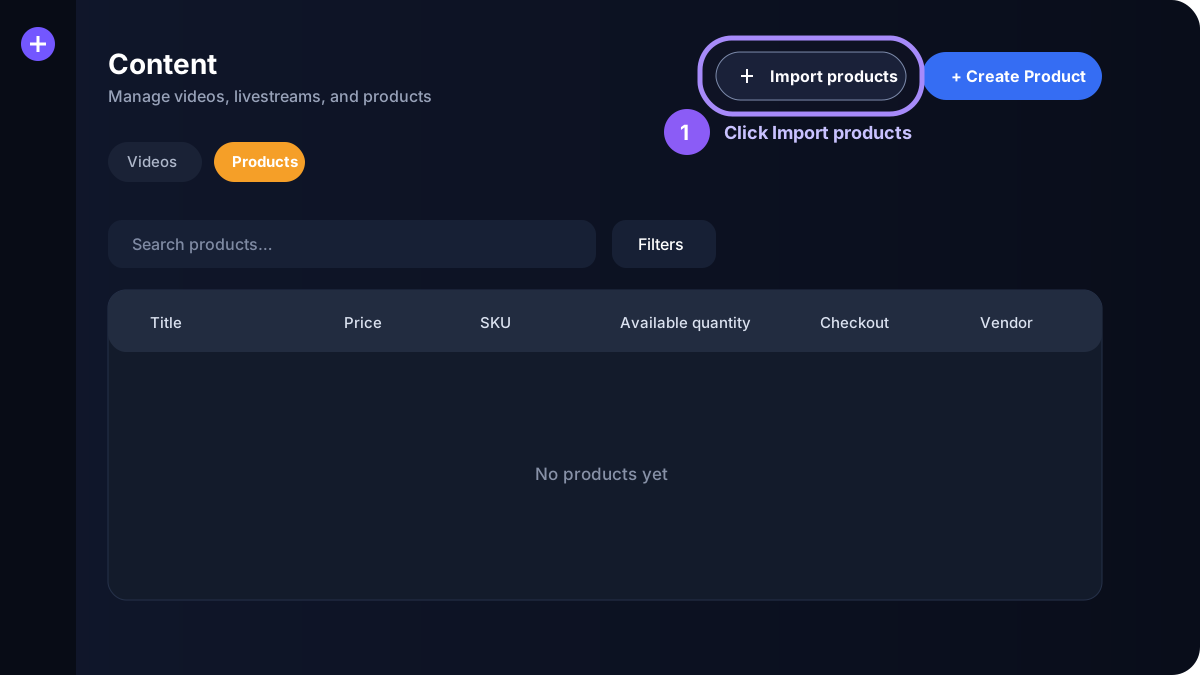
- In Frontro, open Content and select Products.
- Click Import products.
- Click Choose CSV file and select the export from your ecommerce platform.
- Confirm that Frontro detected the expected format.
- Review the number of products ready to import and fix any rows that need attention.
- Click Import products.
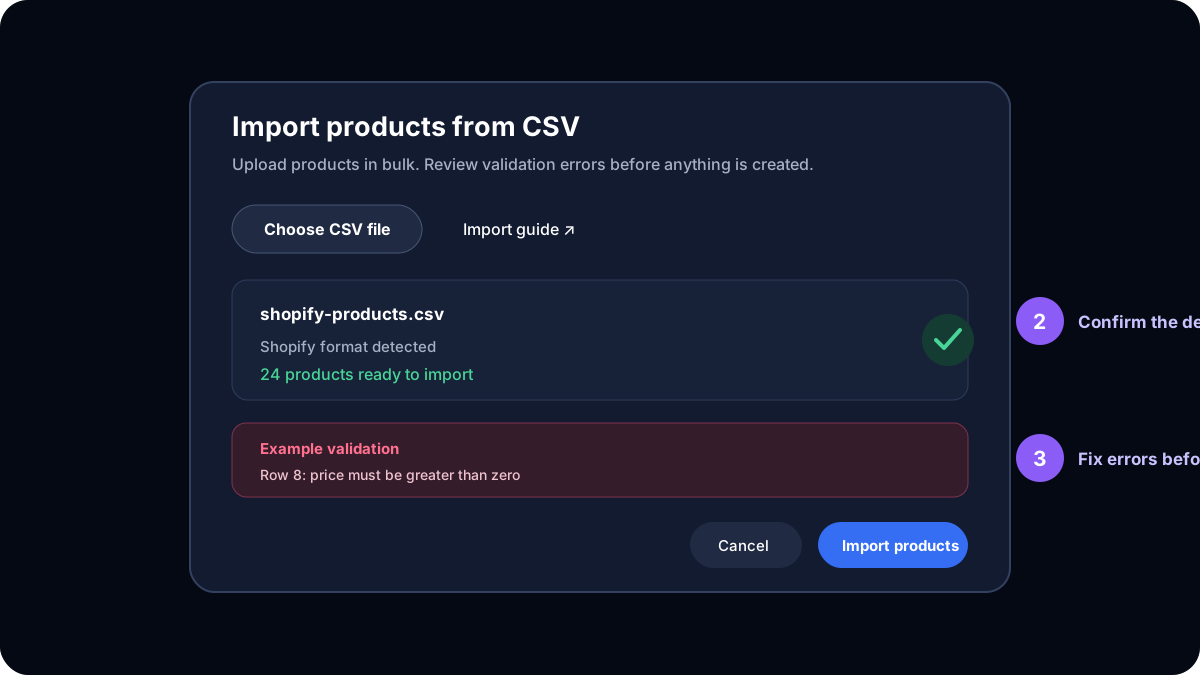
The import button stays disabled when validation errors are present. Each error includes the CSV row number and the field that needs attention. Upload the corrected file to review it again.
Shopify field mapping
| Shopify export | Frontro |
|---|---|
| Title | Product title |
| Description or Body (HTML) | Description |
| Price or Variant Price | Price |
| SKU or Variant SKU | SKU |
| Barcode or Variant Barcode | Barcode |
| Inventory quantity or Variant Inventory Qty | Available quantity |
| Continue selling when out of stock or Variant Inventory Policy | Sold-out behavior |
| Requires shipping or Variant Requires Shipping | Physical or digital product |
| Weight value (grams) or Variant Grams | Weight in grams |
| Status or Published on online store | Draft or published visibility |
| Option values | Appended to the Frontro product title |
Frontro recognizes both Shopify's current column names and the legacy Variant ... names found in older exports.
WooCommerce exports
In WordPress, go to Products, click Export, select the product fields you need, and generate the CSV. Upload that file directly in Frontro.
Frontro supports simple products and variation rows. Variable or grouped parent rows without a price are skipped because they aren't independently purchasable. Variations retain their own name, SKU, price, stock, backorder setting, and published status.
WooCommerce can customize exports through extensions. If a plugin renames core columns, use the Frontro template or rename those columns back to the core names before importing. See WooCommerce's core CSV import/export overview.
Squarespace exports
In Squarespace, open Products & Services, select Products, and click Export all. To export only part of the catalog, select products and click Export.
Frontro supports physical and service product rows, sale prices, stock, visibility, SKUs, and up to three option values. As with Shopify, each variant becomes its own Frontro product. See Squarespace's product export guide.
Using the Frontro template
For a custom platform or spreadsheet:
- Open Import products in Frontro.
- Click Download template.
- Add one product per row without changing the header names.
- Save the file as a UTF-8 CSV.
- Upload it and review validation before importing.
The required columns are title and price. For reliable inventory and checkout behavior, also provide sku, available_quantity, inventory_policy, and requires_shipping.
Running into trouble? Save the original export and contact Support. Including the row-level validation message will help us diagnose the format quickly.